Complete typed user input with matching results from a larger data set.
Typeahead allows the user to receive one or more suggested matches in a list based on any combination of letter numbers or symbols they input.
A good application of this component can help a user find what they are looking for quicker, or empower them to discover new results.
- Keep the list of results short and manageable.
- Group results together when applicable.
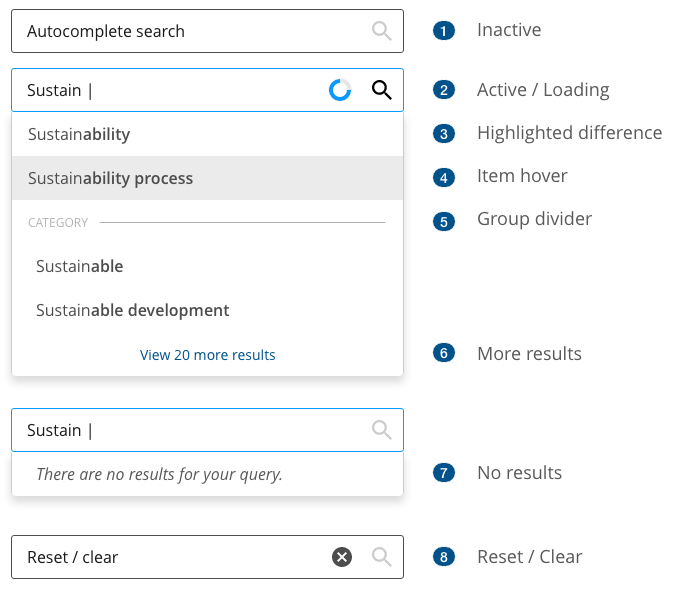
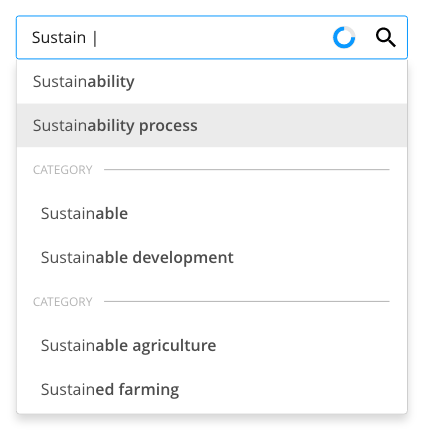
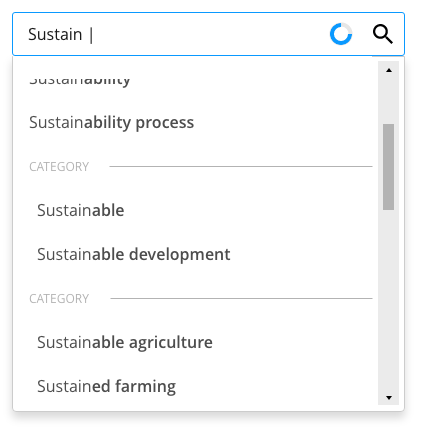
- The result list items highlight the differences between them, not what the user typed.
- Avoid the need for scrollbars.
- Reduce visual noise in the results. A list of text-based results is recommended.
- Implement the reset control to remove queries.
- Implement the loading control to display response from the system.
- Test for performance.
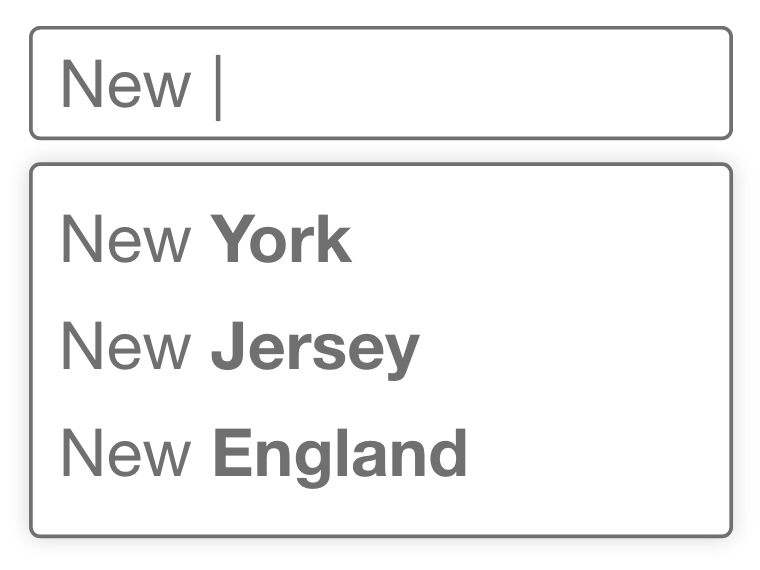
At its most basic level, typeahead is a function that matches what a person types, usually the beginning of a word, prefix, or ID with a word list.
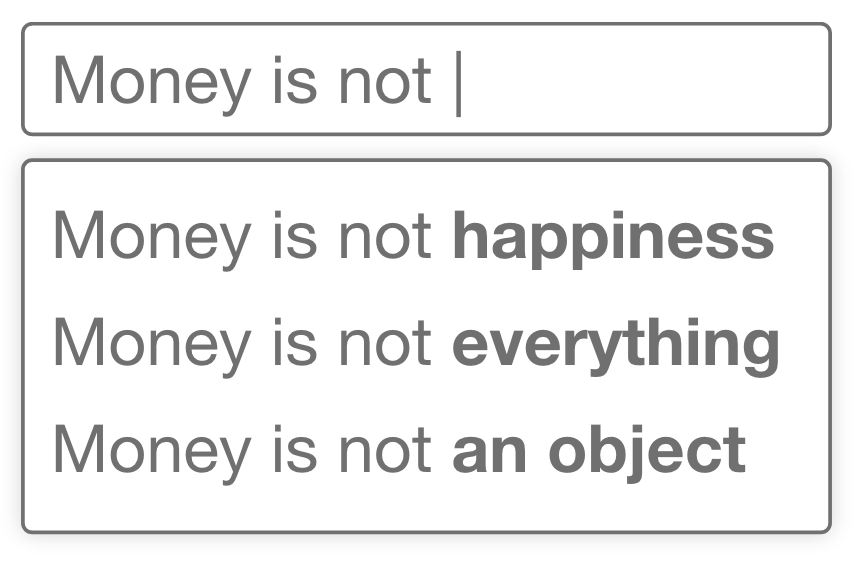
Suggestions help users construct more useful searches than they might on their own by trying to predict their intentions. This type of typeahead can help users discover new content.
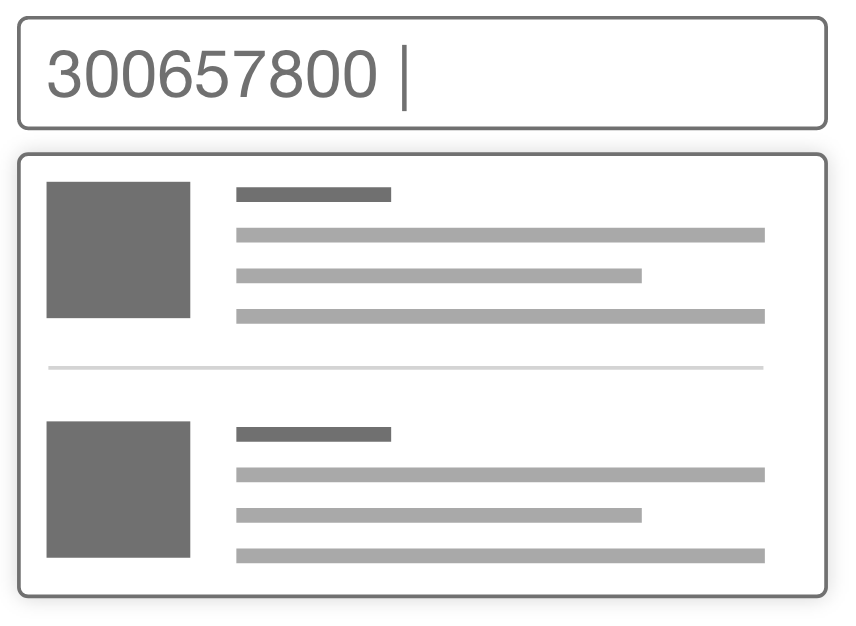
Rich information with complete search results narrow down the search to a specific result.
Focus on the input field is achieved through a mouse click or through the use of the TAB key in the keyboard. The input field changes to its active state.

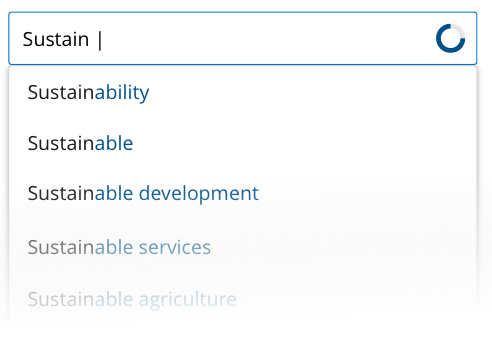
Typing at least 3 characters on the input field triggers the typeahead. This is represented by a loading state and the list of results after it's retrieved.
Response times should never exceed more than 1000ms. Anything longer than that has a negative impact on usability.
- Less than 400ms — the user feels that the system is immediately reacting.
- Between 400–1000ms — the user’s flow of thought stays uninterrupted, but they notice the delay.
Selecting an item from the list copies it to the input field which changes to a reset state. The cancel icon on the right clears the query from the input field.

| Key | Action |
|---|---|
| Down arrow | Moves focus to the next item on the results list |
| Up arrow | Moves focus to the previous item on the results list |
| Enter | Selects the active item in the list |
| Escape | Dismisses the results list |
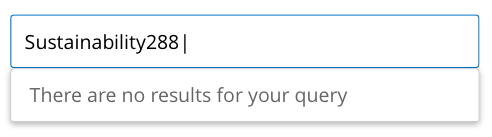
If the query returns no results, a message should be displayed in the list.
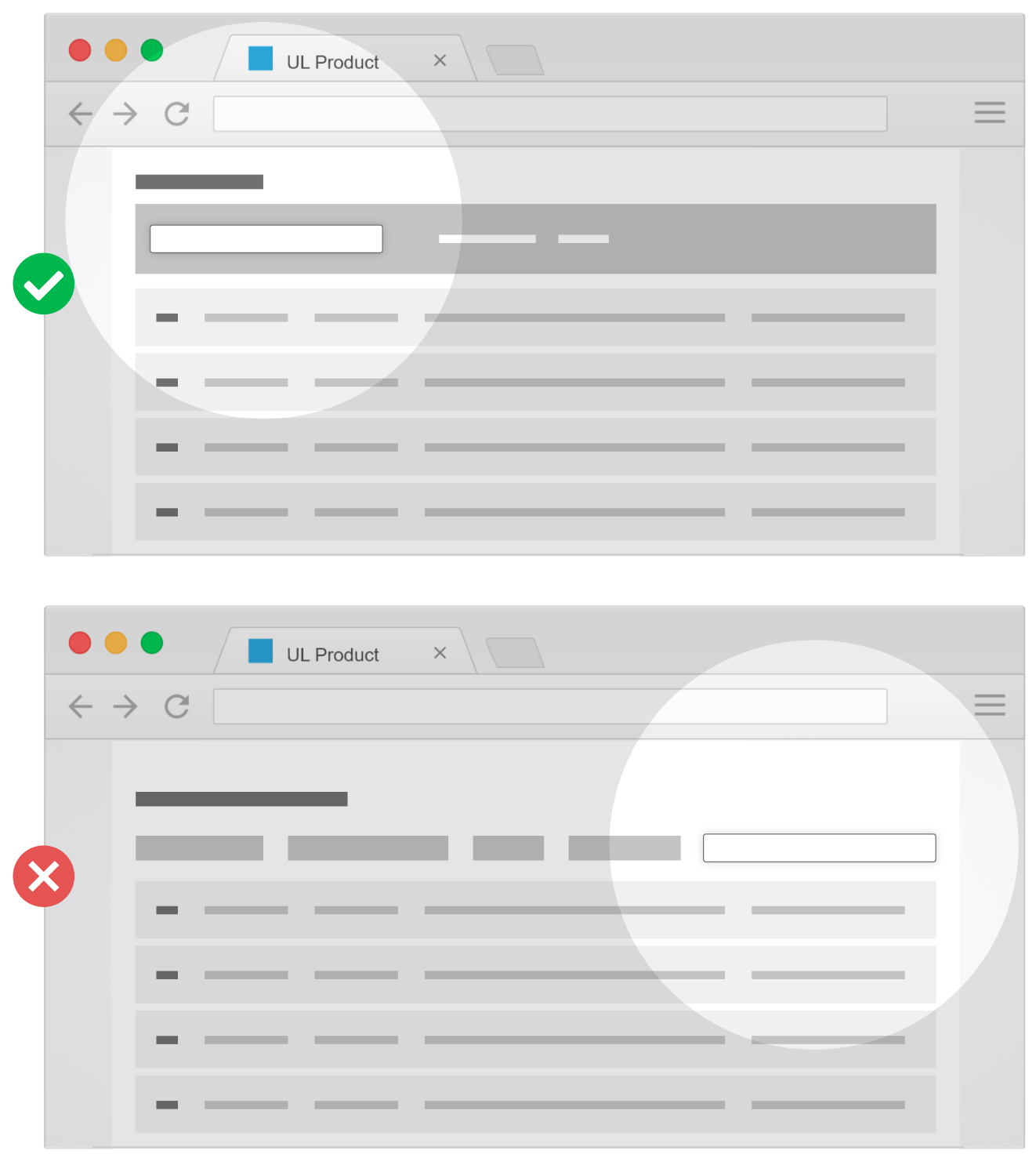
An typeahead component used as a search function should have a prominent position above the data to be searched.
Use the category divider item to separate supporting information from the suggested search terms. This makes the list easier to scan because the user can distinguish the information at a glance.
A concise typeahead list of no more than 10 items encourages better searching as it suggests the user to refine his/her search query. A long list of options can be overwhelming and it reduces the effectiveness of the typeahead function, while also increasing response times.
If you must use a scrollbar, keep the result list container's height as short as possible (no more than 10 items) and keep the scrollbar visible on the dropdown list.
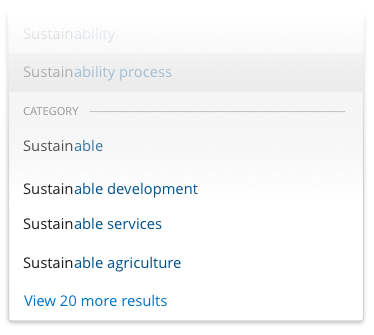
In other cases, you may add a link to more results at the bottom of the list.
- Implement the proper keyboard navigation for this and all form components.
- See WAI-ARIA Authoring Practices 1.1: Combo Box and ARIA 1.1 Combobox with Listbox Popup Examples for more details.
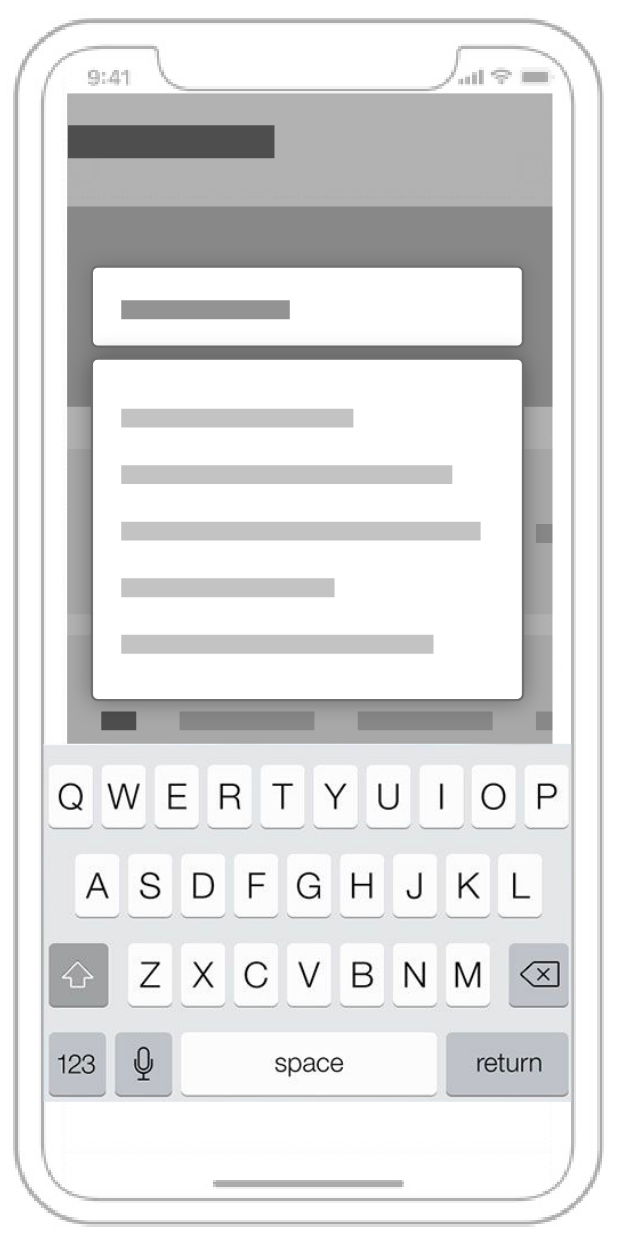
In mobile screens, a concise typeahead list is best as in most cases, the space in the viewport is reduced by the keyboard. Keep mobile results to 4 - 6 results and ensure proper spacing between the options on the list.
// these need proper links later
- Forms
- Lists
We would like to get your feedback. Tell us how you use this component in your projects and how we can improve it.
Feature: Autocomplete Scenario: Trigger When I type 2 or less characters into
      the search box Then I don't see a suggestion box Scenario: Trigger When I type 3
      or more characters into the search box Then I see the suggestion box And I start
      getting results Scenario: Empty results When I type 3 or more characters into
      the search box that yield no results Then I get feedback about no results being
      given Scenario: Loading Given that results take long to appear When I type 3 or
      more characters into the search box Then I see a loading icon Background: With
      suggestions Given there is a suggestion box with results Scenario: Clear input
      When I click on the action that clears the input field Then the icon disappears
      And I don't see the suggestion box Scenario: Navigate down When I type "↓" Then
      the next item is highlighted Scenario: Navigate up When I type "↑" Then the
      previous item is highlighted Scenario: More results Given there is a limit of
      results When there are more results than the limit Then I see a link to see more
      results