An entry point to more detailed information.
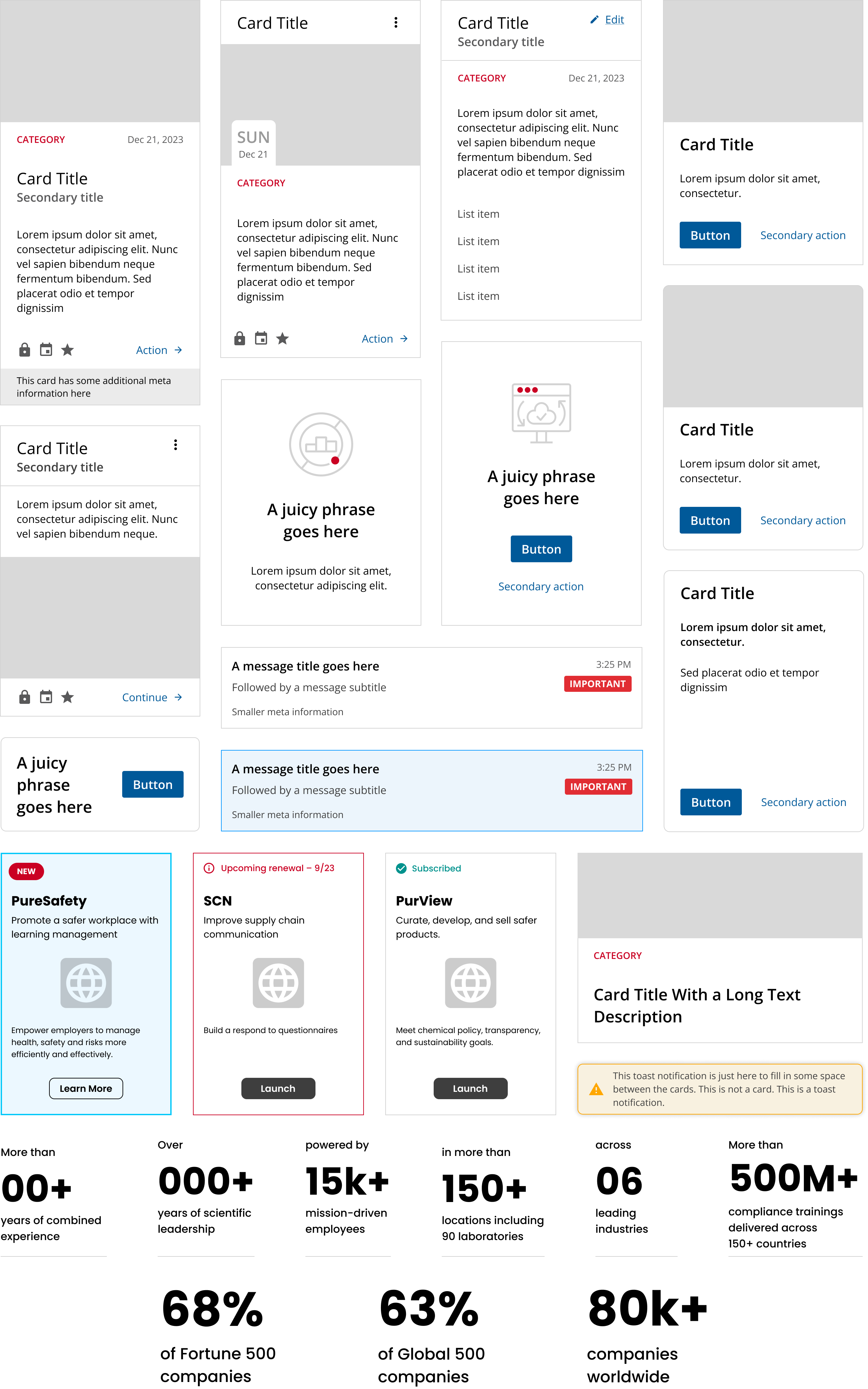
Cards are discrete containers that hold summary information in a specific format. They usually hold a title, a body, and a basic set of actions. They can also route to another location in an application since they don't hold the full extent of information for the elements they represent.
- Provide a simplified and more accessible UI.
- Hold multiple different pieces of information and types of media on one page.
- Display multiple calls to action.
- Isolate certain chunks of information and help the user memorize information in a more cognitive-friendly way.
- Skim through vast amounts of information to find what matters to the users most.
- Represent: Each card should encapsulate one idea, topic, or product.
- Ensure Scannability: Design cards for quick reading.
- Plan Hierarchy: Organize information logically.
- Maintain Space: Provide adequate negative space between cards.
- Clickable Appearance: Design link cards to look interactive.
- Consistency: Standardize interactions within cards.
- Responsiveness: Design for various screen sizes.
- Simplify UI: Use cards to streamline complex interfaces.
- Display Media: Ideal for showcasing multiple media types.
- Highlight Actions: Effective for presenting calls to action.
- Avoid Overload: Prevent visual clutter by not overusing cards.
- Homogeneous Content: Not suitable for uniform data.
- Excessive Information: Avoid overloading cards with content.
- Content Comparison: Do not use for side-by-side comparisons.
- List Replacement: Use lists inside cards if necessary.
- Basic Elements: Title, body, footer (actions).
- Additional Elements: Image, secondary title, metadata, event date, category, ID, date.
- Content: Ensure brevity and scannability; work with content providers for succinctness.
- Loading State: Display progress during content loading.
- Empty State: Placeholder for future data or actions.
- Hover State: Use for link cards; avoid on inline links.
- Focus & Active States: Essential for accessibility in link cards.
- Hierarchy: Use design and size to indicate information hierarchy.
- Alignment: Avoid content overload to maintain alignment; use flex groups or JavaScript if necessary.
- Exception: Allow misalignment for value progression, e.g., pricing tables.
- Avoid Full-Container Links: Can hinder screen reader experience.
- Implement States: Ensure hover, focus, and active states for link cards.
- Responsive Design: Use grid layouts to maintain component integrity across breakpoints.
- Lists: Use for homogeneous content or when comparing data.
- Grids: Ideal for organizing multiple cards in a responsive layout.

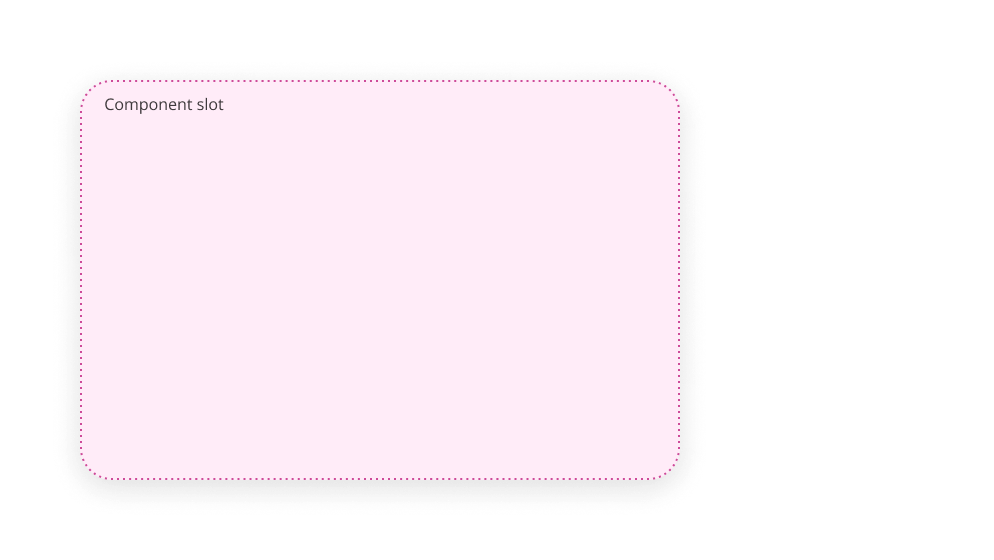
The card is just a simple box which can contain any content.
The card itself does not have any padding, since that would restrict the potential content. Instead content should manage it's own layout, applying margin / padding as required.
Padding is added in Figma to make space for the border. It is not required when there's no border (as in ULTRUS).
Platform:
Theme: