System and action messages for the user
Providing clear communication and feedback to users is crucial for building confidence and trust.
Notifications are disruptive so limit the usage of this pattern whenever possible and when necessary, make their purpose immediately apparent to the user and with a clear path to dismissal.
User for:
- System status or changes
- Validation messages
- Event notification
Don't use:
- On forms, these have their own inline validation alerts
Avoid long messages. The average user can read about 19 characters per second. Therefore, a 200 character limit is recommended. A noun + verb pattern is suggested, so as to reduce cognitive load
Use “we,” “our” and “you” to create a sense that we are speaking directly to our customers.
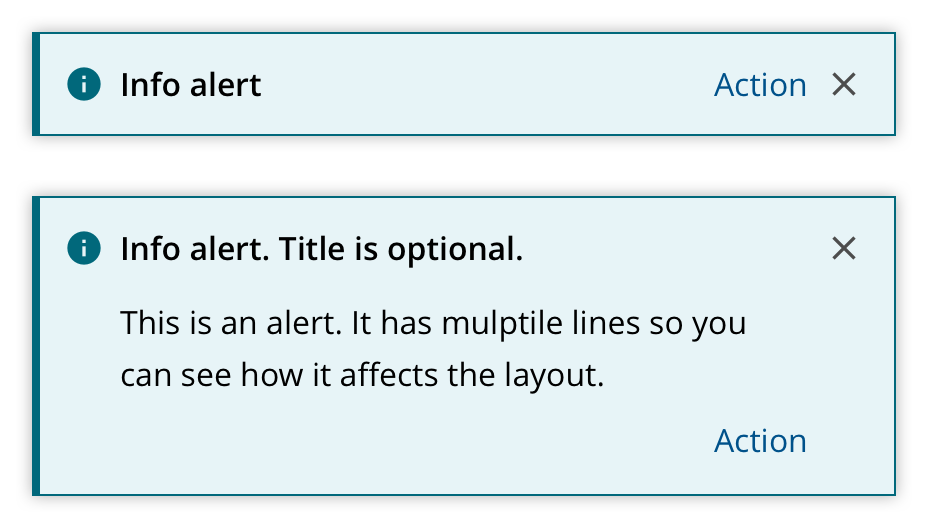
- Accent — the color of the notification;
- Icon — the icon of the notification;
- Label — the text that describes the content of a single line notification or the title of a multiline notification;
- Action — an optional action for the user to follow;
- Dismiss — the dismiss button.
| Type | Priority | Context | Example |
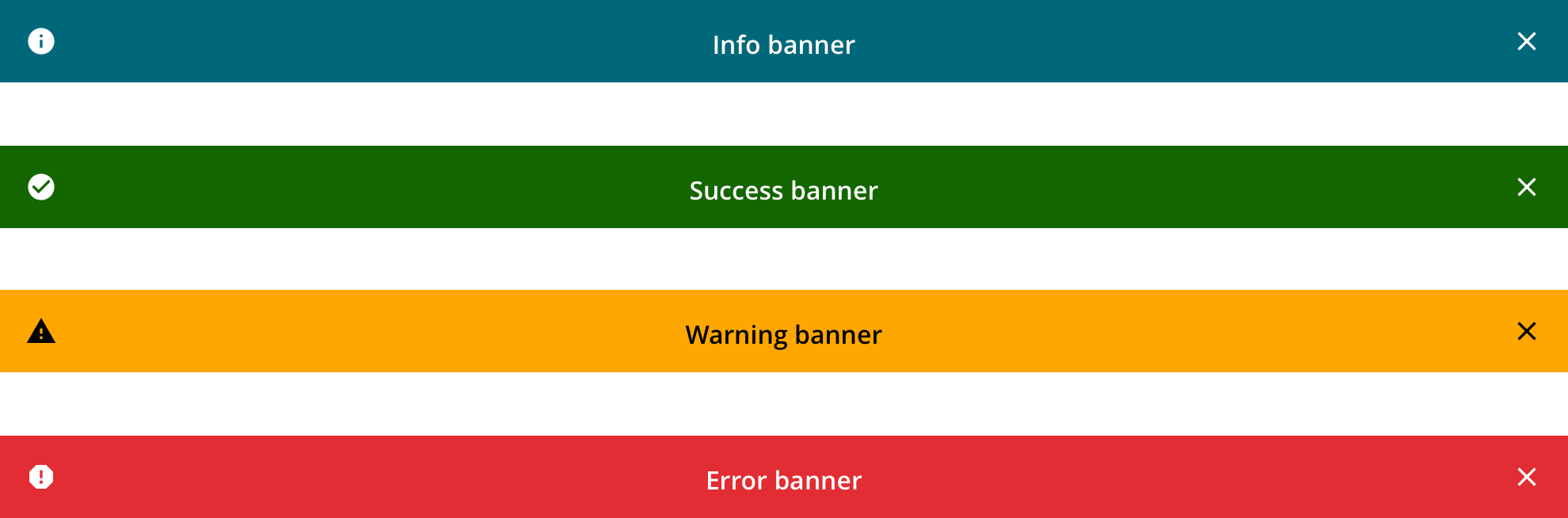
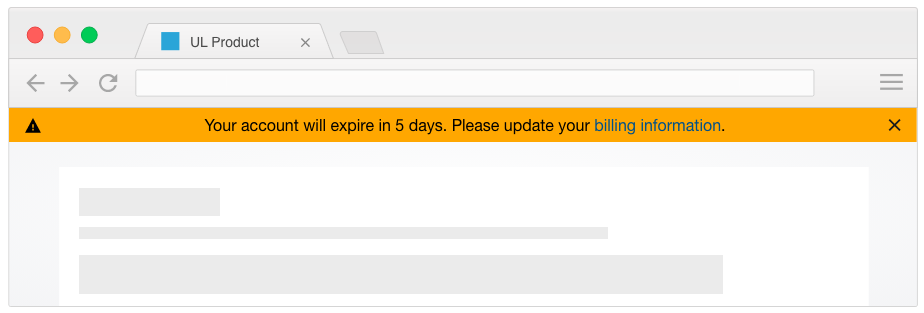
| Banner | High priority | Critical system-level | "Your account will expire in 5 days. Please update your billing information." |
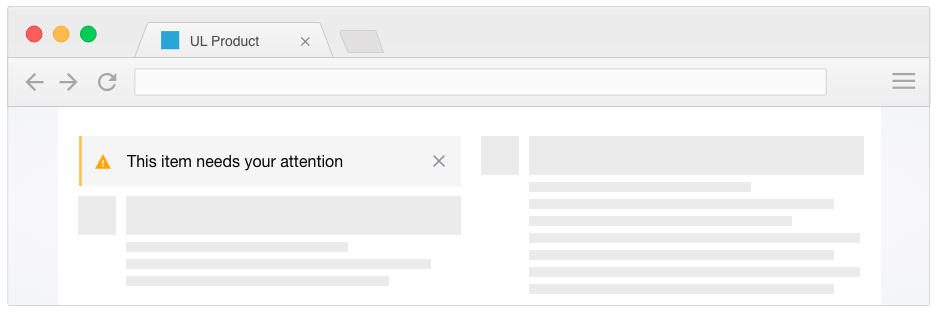
| Inline | Medium priority | Critical task-level | "This product has been rejected, please review it to fix the issue." |
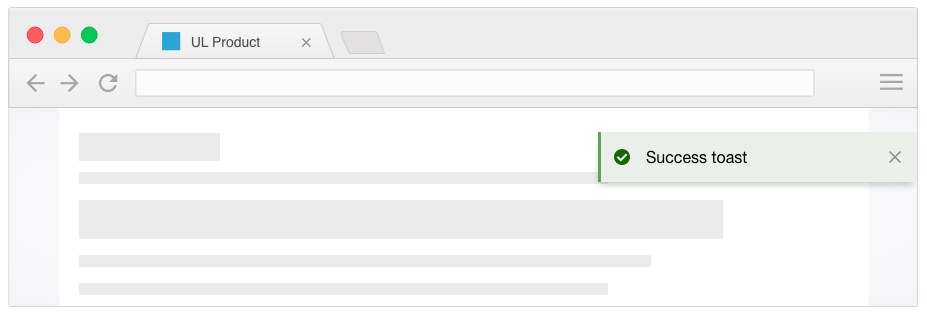
| Toast | Low priority | Non-critical task and system-level | Successfully: create, save, duplicate, edit, delete, share an item or send a message. |
Position
Banner notifications appear at the absolute top of the screen and shift the content below.
Position
Inline notifications appear in context to the content or action triggering it. For notifications linked to plain text or icons use a tooltip instead.
Position
Toast notifications appear on a layer above the page content.
Timing
Ideally, the toast should be timed, based on the length of the text and its contents. If such implementation is not possible, keep it for:
- 6 seconds by default;
- 10 seconds if the toast contains a link or any call to action.
If more than one toast shows within the timespan, the most recent one will show below in chronological order and slide up once the top one expires or is closed.
Toasts disappear if a user navigates away as it will no longer be relevant to the new page content displayed.
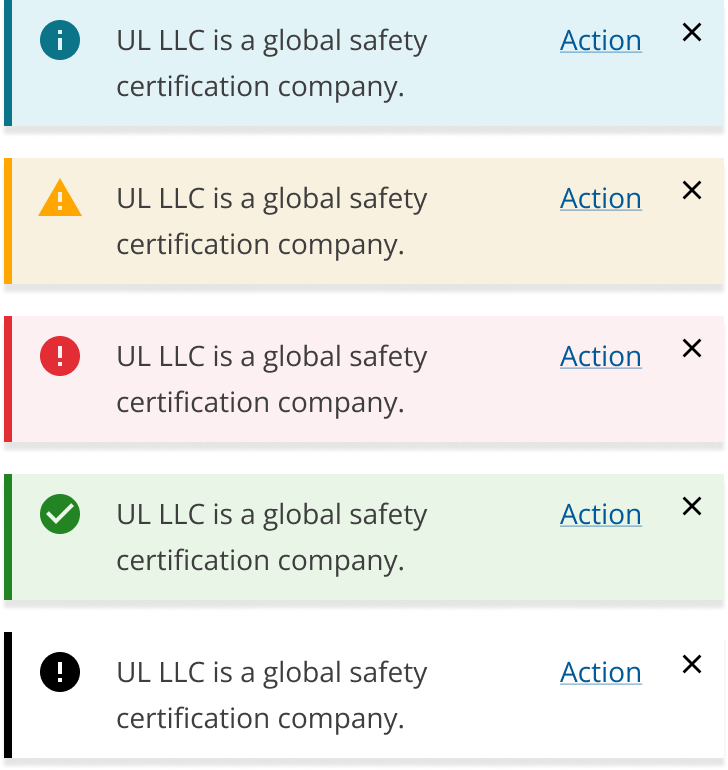
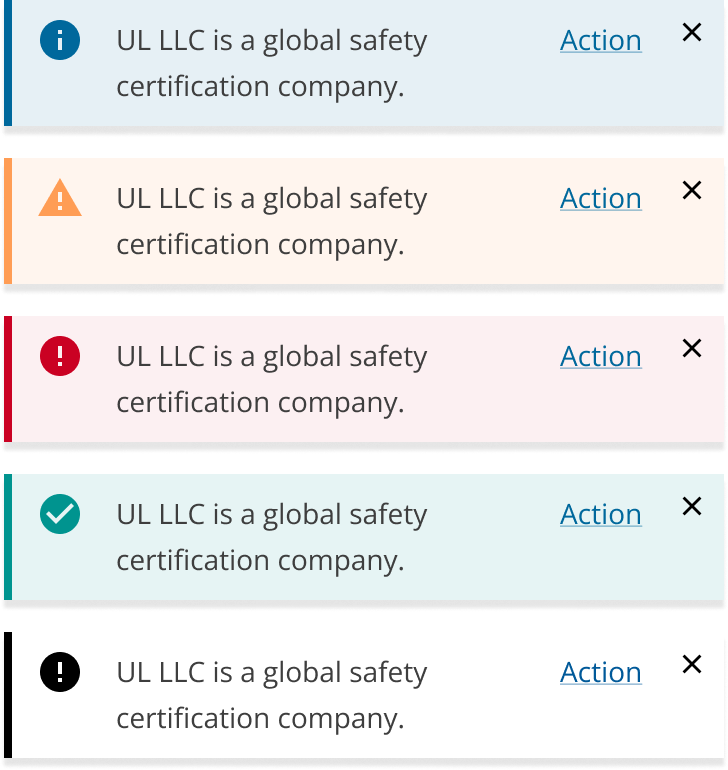
Notifications fall into the feedback category of our color system.
- Information
- Error / Danger
- Success
- Warning
Notifications are triggered and dismissed according to their type
| Type | Trigger example | Dismiss |
| Banner | "Your account will expire in 5 days. Please update your billing information." | Does not expire during the browser session. It will persist in the area of the screen until the user takes an action to close it. |
| Inline | Confirmations, alerts, and acknowledgments that require minimal user interaction. | Does not expire during the browser session. It will persist in the area of the screen until the user takes an action to close it or navigates away from the page. |
| Toast | Successfully: create, save, duplicate, edit, delete, share an item or send a message. | Auto-expiring, non-disruptive, and dismissible. Position and timing |
As with all icon buttons, a tooltip should be used on a notification's dismiss button
Use an alert to implement notices of success or failure for a persistence action (i.e. form submit). On a full-page view, these notices should appear in a consistent position from page to page; for example, a styled box directly beneath the main page title or the page lead text. If an alert message appears within a modal window, the alert should be prepended as the first element of the modal content (body), in general (though specific layouts may require a modified implementation).
Where the alert is a direct result of an action by the user, the alert should have a dismissible option (close button). In other circumstances, alerts may be used to provide help text or other notices, and these elements should not include a close button.
- Use ARIA
role='alert'to display a message designed to briefly attract the user's attention. This message should not interrupt the task at hand and should therefore not affect keyboard focus. - For an alert that should interrupt the user's task and take keyboard focus, use ARIA
role='alertdialog'. (The definition of the ARIArole='dialog'is: "an application window that is designed to interrupt the current processing of an application in order to prompt the user to enter information or require a response"). - Alerts do not need to be visually hidden if they are not being used. However, if you do not want a screen reader to pick up an alert, use the
aria-hidden='true'HTML attribute and/ordisplay: nonein your CSS. - The following attributes should be included in a non-button tag (ie. when using
ifor a close icon ) to expose it as a button to a screen reader. In most cases, this code would be more like<button class='close' type="button" role="button" aria-label="Close"><i class='fa fa-close' aria-hidden="true"></i></button>. (In this fragment, theitag setsaria-hiddento "true"; the content of the button is explained by itsaria-label="Close"attribute and requires no further expository text [the icon can be skipped with no loss of information].)
We would like to get your feedback. Tell us how you use this component in your projects and how we can improve it.