The sidebar is a component that typically sits on one side of the application. It is as a placeholder for a multitude of functions: result filtering, navigation, secondary information, etc.
Our current recommendation for the sidebar is for navigation elements only.
A sidebar typically contains two sections: top and bottom. Each section holds a list of items, which may contain its own nested list of items.
Items may be categorized. Each item may include an optional decorative icon.
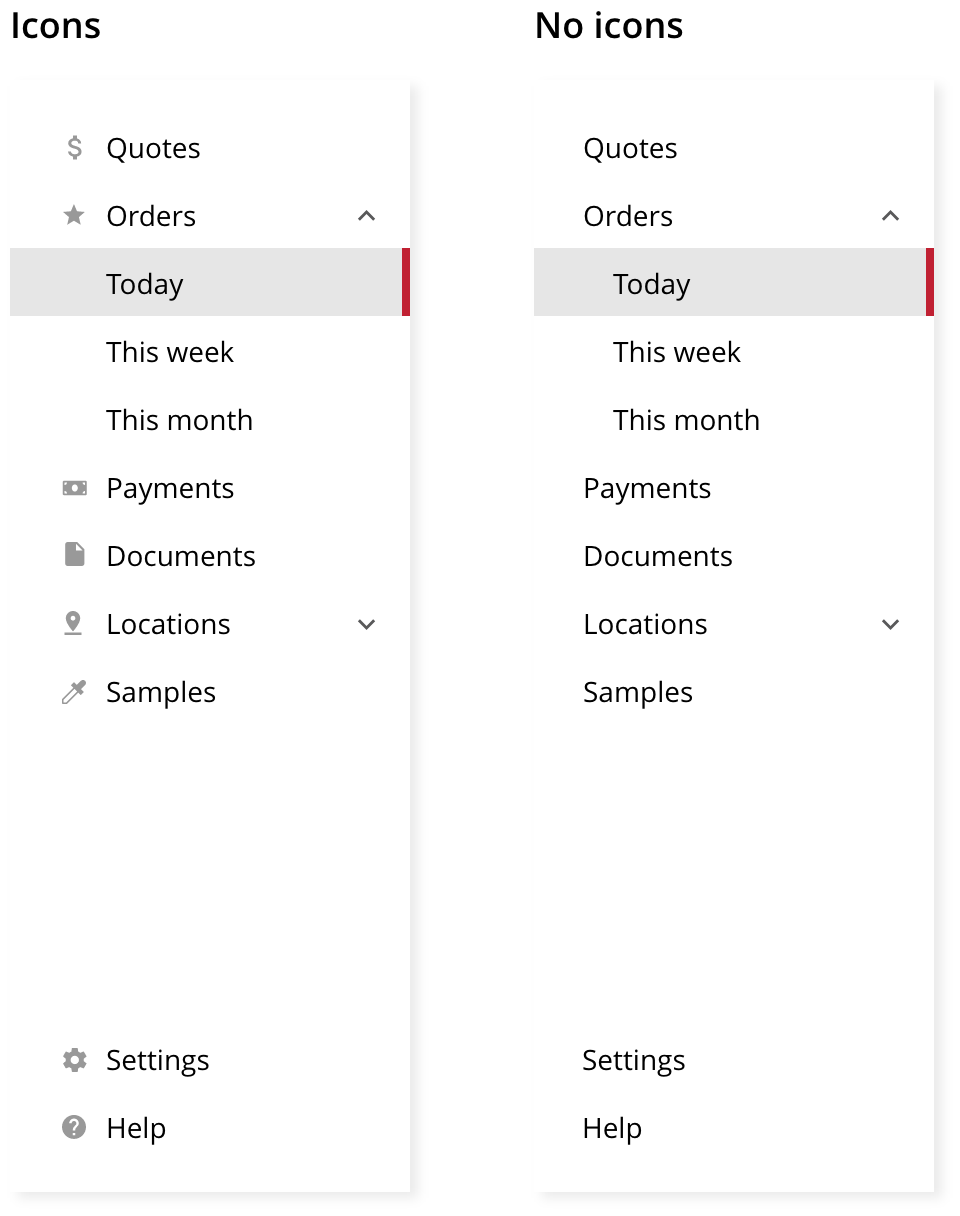
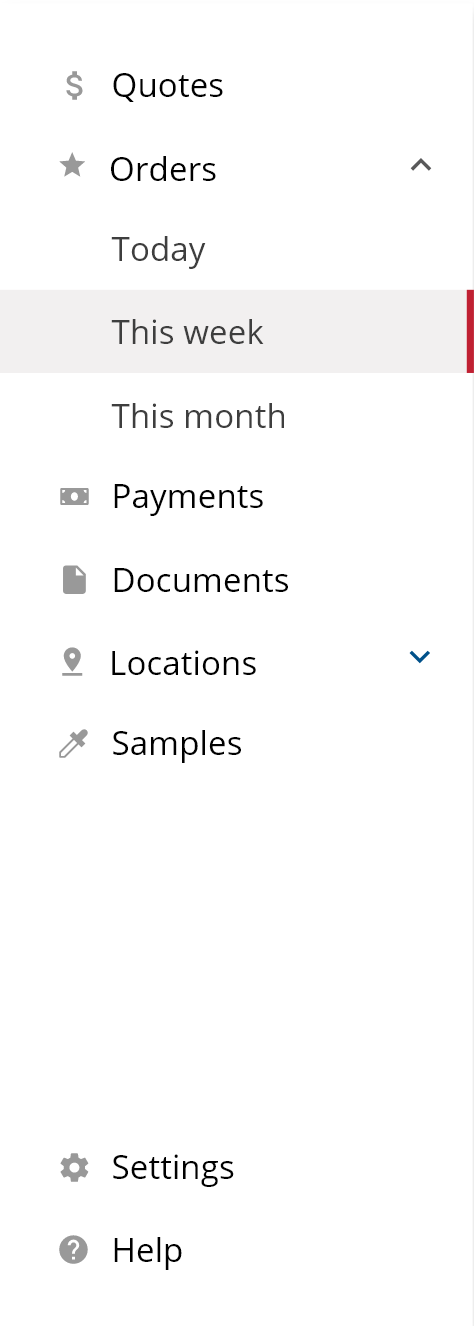 Sample of a sidebar, with icons, navigation hierarchy and bottom section.
The bottom section of the sidebar is optional and is mainly used for items that are typically not related to the product domain. Good examples of navigation items that belong there are "Settings" and "Help" but there may be others. Use your best judgment.
The design system recommends a single "Basic" sidebar that contains text link items. Those items may contain decorative, representative icons. Should you choose to use icons, ensure all items have a label. If you are unsure whether all items can fit an icon or not, it's recommended to not use them at all. Never rely on just icons to define your navigation. Always choose to add labels to the icons and have them visually present at all times.
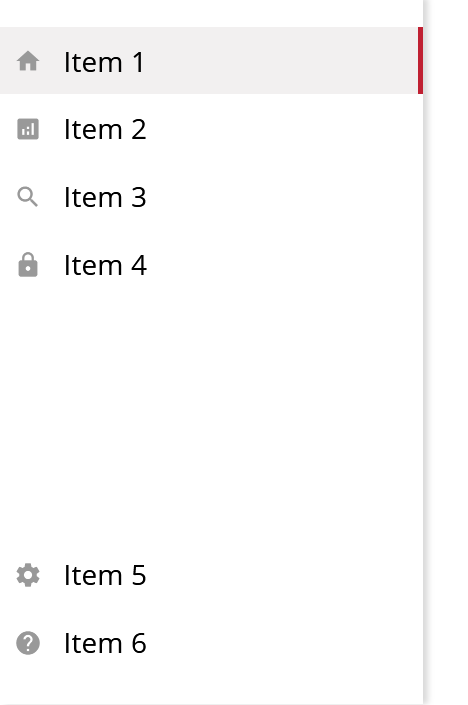 Sidebar with random, illustrative icons.
Note that only the top-level items should have icons, whereas nested items do not.
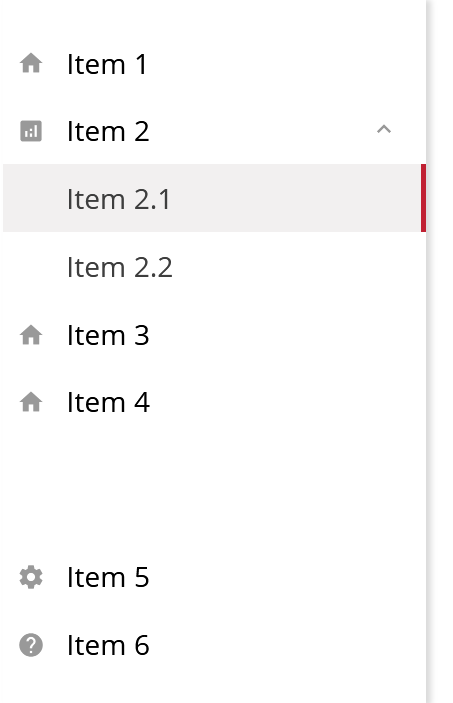 Sidebar with icons and nested item list.
If a navigation link matches the current page you're in, it is properly marked.
 Active sidebar navigation item.
If that navigation link is nested within a category, only the link becomes active, not the whole tree path.
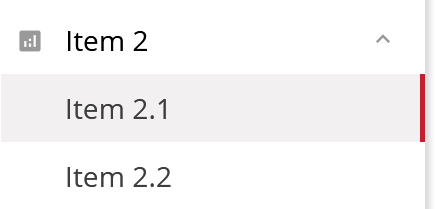 Active sidebar nested navigation item.
When laying out your navigation structure, the most important / most frequent items should go first.
Navigation items within the sidebar may include nested items. If so, such parent item should not serve to switch to another point in the product or experience. Instead, it must act as a trigger for expanding/collapsing its nested list.
When the sidebar's top section has too many items, to the point of not being able to show them all within the viewport, it becomes scrollable.
Feature: Application

        Background: Sidebar
          Given the application has a sidebar

          Scenario: Open sidebar
            Given the sidebar is hidden
            When I click on the left-side hamburger menu
            Then I see the sidebar

          Scenario: Close sidebar
            Given the sidebar is visible
            When I click on the left-side hamburger menu
            Then I do not see the sidebar