Modals interrupt users and demand an action. They are appropriate when user’s attention needs to be directed toward important information.
A modal, which involves user interaction, shows information in a layer above the current application or task.
Use a modal to allow for the completion of a secondary or sub-task without abandoning the initial or primary task. This can include critical or warning information, but also support efficient completion of the task without losing the context of the page.
A modal is not necessarily fit for all intents and purposes. Please review the best practices guidelines and related components to identify when other components may be best used.
Use “we,” “our” and “you” to create a sense that we are speaking directly to our customers.
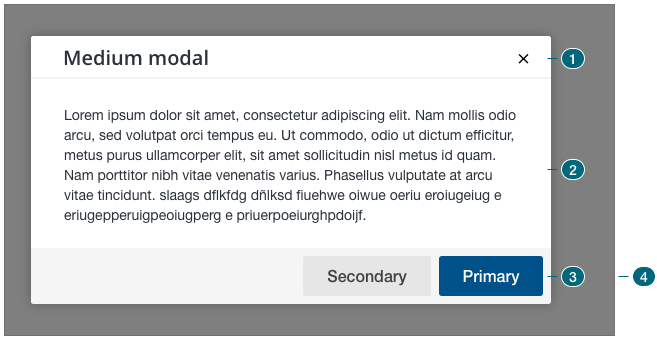
- Header — contains the modal's title (sentence case) and dismiss button;
- Body — contains the goal and or controls to complete the modal's task;
- Footer — contains the primary and secondary actions;
- Overlay — covers the content beneath the modal to that focus is on the modal.
The primary button's label fulfills the modal's main purpose.

- Dismissed by completing the task;
- By pressing the
cancelbutton; - By clicking the
xicon in the upper right corner; - By pressing
ESCon the keyboard.

- Dismissed by completing the task;
- By pressing the
cancelbutton; - By clicking the
xicon in the upper right corner; - By pressing
ESCon the keyboard.

- Dismissed by clicking the
Xicon in the upper right corner; - By pressing
ESCon the keyboard; - By clicking anywhere outside the modal.

- Dismissed by completing the task;
- By clicking the
xicon in the upper right corner (cancels the request); - By pressing
ESCon the keyboard (cancels the request).
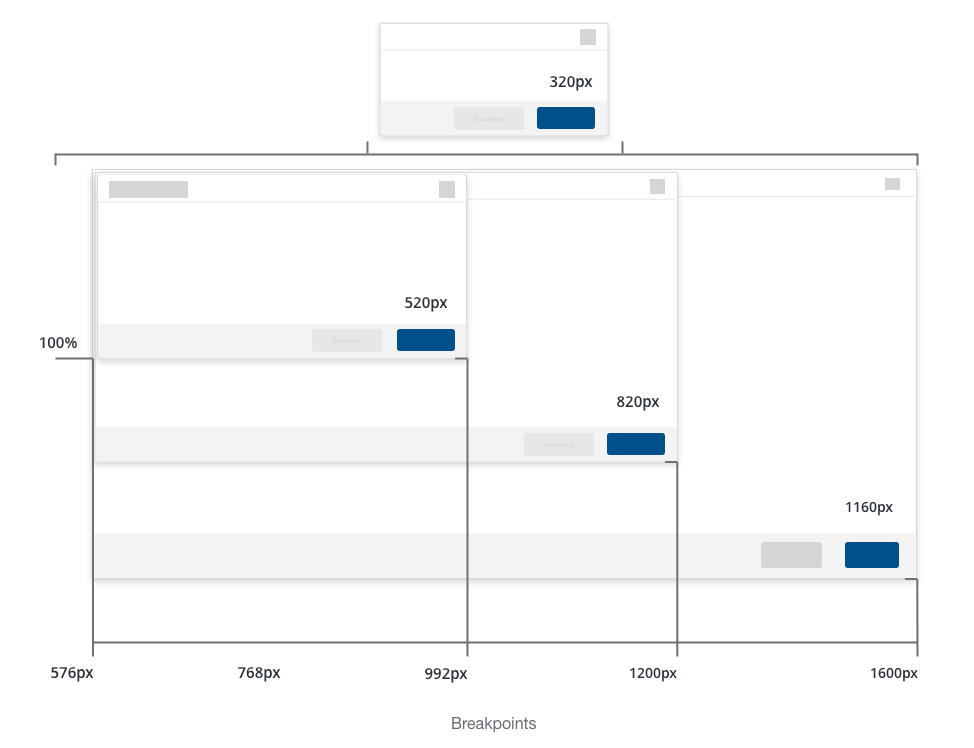
Modal sizes are based on our responsive breakpoints. Modals larger than 820px are not encouraged and should be used sparingly.
No additional interactions can be done on the main page during an active modal.
A faded curtain covers the main app content/task beneath the modal so that the focus is on the modal.
- Click cancel action;
- Click dismiss button on the header;
- Press
ESCon the keyboard; - Click anywhere on the faded curtain.
- The
ESCkey dismisses the modal; - First
TABhighlights the primary action; - Second
TABhighlights the secondary action.
Modals should always appear center and middle aligned to the browser's width.
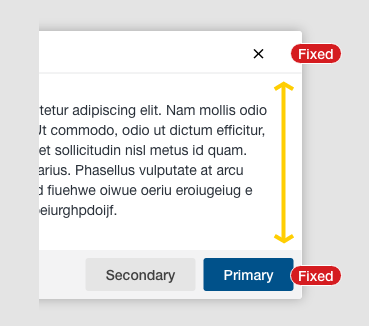
Modals vary in width, while height is determined by content. Once a certain threshold is reached, the body content will scroll while the header and footer remain fixed until the bottom of the modal is reached.
Because of their invasive nature, modals should be used sparingly. The ability for a user to access, view, and work on tasks is important to a good user experience.
- Simplify interactions;
- Avoid multiple modals;
- Avoid additional navigation within the modal;
WAI-ARIA authoring emphasizes keyboard usage for opening and interacting with modals.
Please review the recommended breakpoints for modals.
We would like to get your feedback. Tell us how you use this component in your projects and how we can improve it.
Feature: Modal Background: There is a modal Given a modal is open Scenario:
      Close modal by clicking on [X] When I click on the close icon Then the modal
      disappears Scenario: Close modal by typing ESC When I type the Escape key Then
      the modal disappears Scenario: Close modal by clicking on scrim When I click on
      the scrim Then the modal disappears Scenario: Commit transaction Given the modal
      is transactional When I click on the primary action Then the modal gives me
      confirmation feedback Scenario: Prevent transaction Given the modal is
      transactional And the transaction requirements are not met When I click on the
      primary action Then the transaction does not follow through And the modal gives
      me negative feedback