Show a list of items, which can be activated or selected. Hierarchical lists are supported.
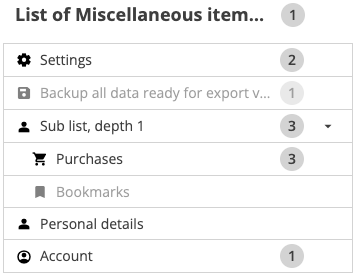
Lists are a fundamental data presentation.
- Selectable: Lists can be just for presentation, or allow items to be selected or active.
- Nested: Lists can contain sub-lists to form a hierarchy
- Compact: Lists provide a compact way to see a set of items
- When you have a list of items simple items to present or select.
- When there's a natural order to the items (e.g. alphabetical or semantic).
- When the items are more than just text, but include icons, or other.
- Composed inside other components, e.g. mega menu, typeahead.
- If items have multiple fields and need to provide sorting and filtering features. Use tables instead.
- If you need an
- .
- If all you need is a simple
- .
- A list consists of a few pieces:
- A list header
- A list container
- A number of list items
- A list header or item may contain:
- Text, icons, and other inactive components
- Links
- Buttons, checkboxes and other input components
- Cards with arbitrary content
- Lists, to form a hierarchy. The containing list item then gets a disclosure arrow to open/close the sublist.
- A list headers and items are made up of two slots:
- The default slot is left aligned, and flows to the right.
- The right slot is right aligned, and also flows to the right.
- Lists can have one of three selection modes:
- No selection: Items cannot be selected. If the item contains active elements (buttons, inputs, etc) then they will works as usual.
- Leaf selection only: Only leaf items can be selected. That is items which do not contain a child list.
- Branch selection: Any item can be selected even if it contains another list.
- Lists may allow selection of items.
- If the list is hierarchical it may opt to allow (or deny) selection of list items which contain lists as appropriate.
- Hover, active, focus and selected states are shown.
These behaviours are only implemented by the web component. If your application is using the HTML/CSS version these behaviours will need to be implemented in your application. For that reason the web component it recommended.
- Keyboard controls for selectable lists (in either leaf or branch selection mode) are
- Tab (or Shift-Tab)
- Move focus to the next (or previous) item
- At the end (or start) of the list, move focus to the next (or previous) focusable element in the document.
- Disabled items are skipped.
- If an item contains a sub-list
- In "leaf selection" mode
- Focus moves to the disclosure arrow, to open/close the sub-list.
- In "branch selection" mode
- Tab move focus to the item, and the next tab moves focus to the disclosure arrow.
- Shift-Tab moves focus to the disclosure arrow, and the next Shift-Tab moves focus to the item
- In "leaf selection" mode
- If an item contains active elements they get focus after the item in document order (unless tabindexes have been set).
- If the item contains a sublist then the disclosure arrow gets focus after any active elements.
- Up arrow (or Down arrow) - move focus to the previous (or next) item.
- If at the start (or end) of the list then focus will not move further
- Disabled items are skipped.
- Space / Enter
- Focus on an unselected item: select the item. Remove the selection from any currently selected item.
- Focus on a selected item: Select the item
- Focus on an item which contains a sublist, with the list in "branch selection" mode:
- If unselected: Selects the item, and removes selection from any previously selected item
- If selected: Removes the selection from the item
- Right arrow (or Left arrow)
- Focus on an item which contains a sub-list: opens (or closes) the sub-list.
- Tab (or Shift-Tab)
- Alternatives
These properties would not normally be set by an application. There are two cases where you might want to change the default values
- Creating a new theme (or subtheme)
- Creating a new component which uses a list
A theme should set all the properties. Copying from the ULS or Ultrus themes is a good place to start.
| Property | Meaning | Example value |
| --list-background | The background colour for the list | #fff |
| --list-separator | The colour of the line separating list items, used in divided and celled styles | #d3d3d3 |
| Property | Meaning | Example value |
| --list-item-background-hover | Background colour of a list item when it's being hovered over | #d3d3d3 |
| --list-item-background-active | Background colour of a list item when it's being clicked on | #a9a9a9 |
| --list-item-background-selected | Background colour of a list item when it's selected | #0a99ff |
| --list-item-border-width | Thickness of the border of a list item. It can be set using any of the shorthands for setting all sides. | 1px (for a border on all sides of the item) OR 0 4px 0 0 (for a border just on the right hand side) |
| --list-item-border-color-default | Colour of the item border | transparent |
| --list-item-border-color-hover | Colour of the item border when being hovered over | #d3d3d3 |
| --list-item-border-color-active | Colour of the item border when active (i.e. the mouse is clicking on it) | #484848 |
| --list-item-border-color-selected | Colour of the item order when selected | #8888ee |
| --list-item-outline-default | The outline for list items | none |
| --list-item-outline-focus | The outline for list items | #0a99ff |
| --list-item-outline-offset | This is set to -1px for the default style, and 0 for divided and celled styles. This probably shouldn't be changed by applications. | 0 |
| --list-item-padding-top | Top padding for a list item. NB that the height of a list item is not defined, because it depends on what content is put in it. Instead the padding for it is defined. | 0.25rem |
| --list-item-padding-bottom | Bottom padding for a list item. | 0.25rem |
| --list-item-padding-left | Left padding for a list item | 0.75rem |
| --list-item-padding-right | Right padding for a list item | 0.75rem |
| --list-item-indent-increment | The distance the indentation is increased by for each additional level of nesting of the list | 1rem |
| --list-item-expand-gutter | The width of the column containing the sublist expansion control | 3rem |
| --list-item-inter-gap | The minimum gap between left hand content and right hand content | 0.5rem |
| --list-item-intra-gap | The gap between content elements within the lefthand or righthand group. These are laid out using flex. | 0.5rem |
| Property | Meaning | Example value |
| --list-title-font-family | Font family used for list headers | "Open Sans" |
| --list-title-font-size | Font size of list headers | 1.125rem |
| --list-title-font-weight | Font weight of list headers | bold |
These properties would not normally be set by an application. There are two cases where you might want to change the default values
- Creating a new theme (or subtheme)
- Creating a new component which uses a list
A theme should set all the properties. Copying from the ULS or Ultrus themes is a good place to start.
See the HTML/CSS tab for the full list of properties