Icons can be used as accents to support the topic and ideas being presented.
The specifications in this section refer to Material Design icons
On occasion, you may need to develop custom icons for special cases. Implement these icons in the code as SVGs, which allows for smooth and responsive resizing.
- Icons always communicate a meaning;
- Always align the semantic name of an icon with the intended use e.g. "expand-more" should be used to expand a collapsible drawer;
- Include a text label with the icon whenever possible;
- Use icons to enhance the content without being too distracting;
- Use icons consistently throughout your design, if you use an icon once to convey a concept, be sure to use it again when the same concept is presented;
- Use the proper sizing and spacing guidelines for consistent icons.
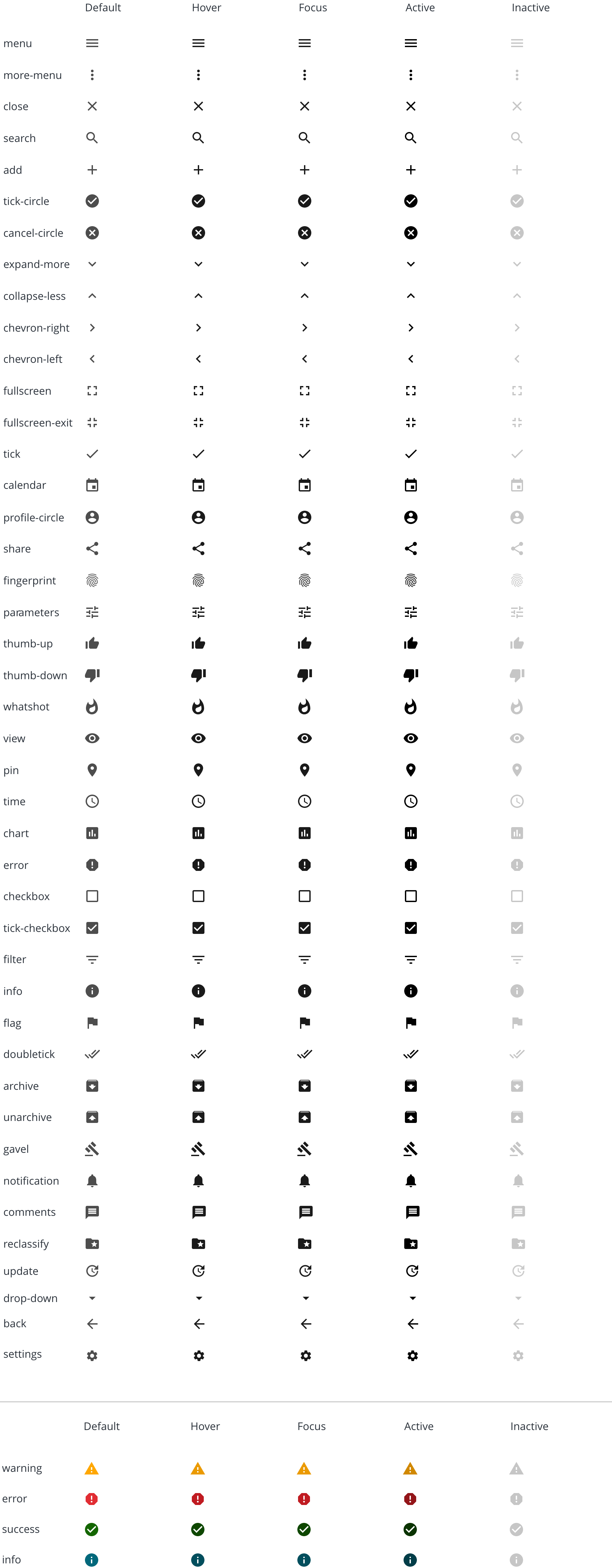
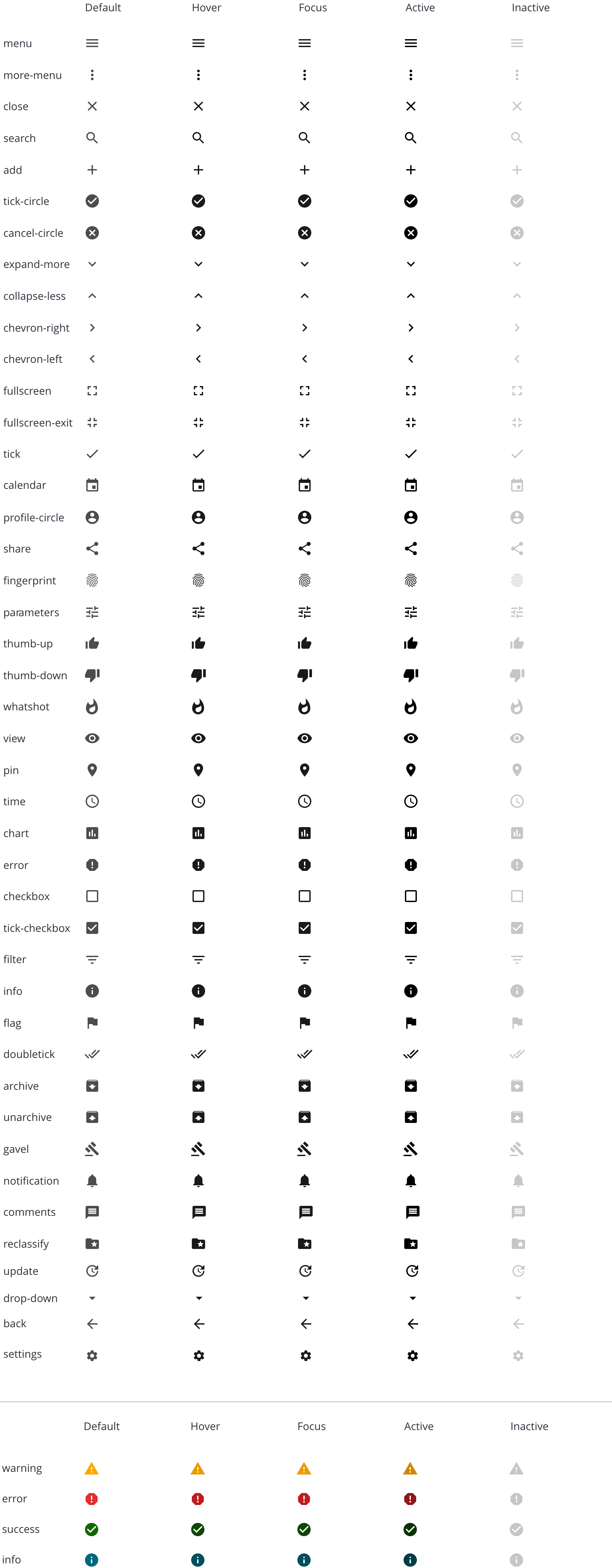
Some of the more frequently used icons are listed below. You may use any other icon from the Material Icons library in your designs as long as you follow some of the best practices outlined in this section.
- Small buttons;
- Dropdown menus.
- Medium buttons;
- Navigation;
- Toolbars.
- Toolbars;
- Show/hide menus.
Icons that appear on their own with out a supporting label should always include a tooltip.
Icons that support a topic or an idea are always aligned to the left.
Icons that imply an action are aligned to the right.
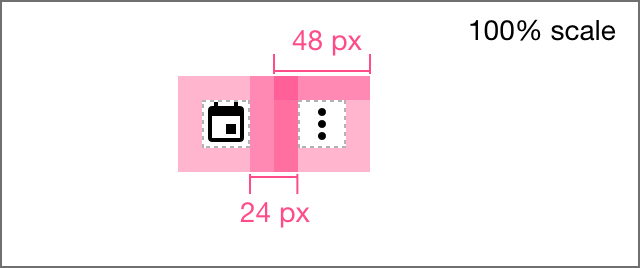
24px icons can be placed on a** 48px touch surface** to avoid being covered by a scrollbar or similar controls.
Allow 24px in-between icons and 8 px in between an icon and its label.
- Icons always communicate a meaning;
- Always align the semantic name of an icon with the intended use. For example,
expand-moreshould be used to expand a collapsible drawer; - Include a text label with the icon whenever possible;
- Use icons to enhance the content without being too distracting;
- Use icons consistently throughout your design. If you use an icon once to convey a concept, be sure to use it again when the same concept is presented;
- Make icons instantly perceivable, otherwise, they become inaccessible.
- Always add an
ALTtext for linked icons. Decorative icons should not haveALTtext. - Always add a text label.
- Follow the color guidelines to comply with proper contrast requirements.
- Do not resize icons past their minimum size.
- Follow the spacing recommendations for a proper click and touch target.
- Always include
aria-hidden=”true”for all icons.
We would like to get your feedback. Tell us how you use this component in your projects and how we can improve it.
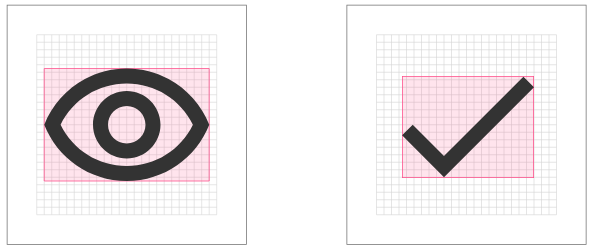
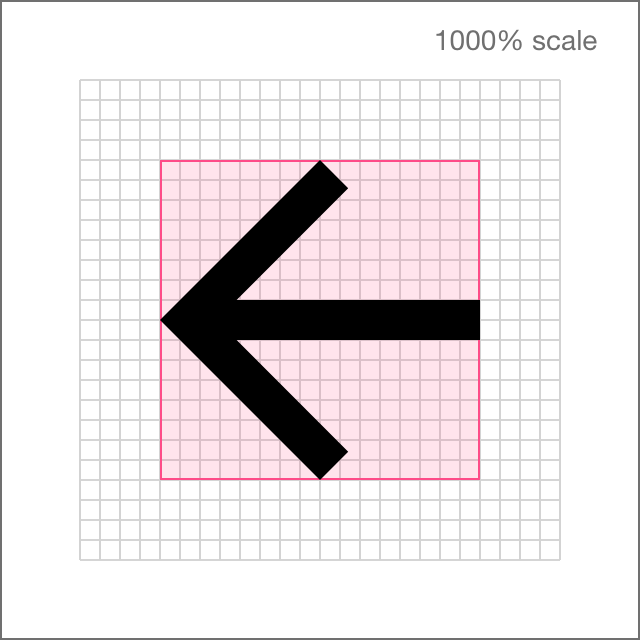
Centered on the grid. Have 2 or 3 pixels padding on average
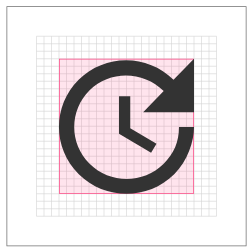
The aspect ratio, the size of the icon versus grid varies. System icons such as "View More", Chevrons, Dropdown arrows occupy less space on the grid.
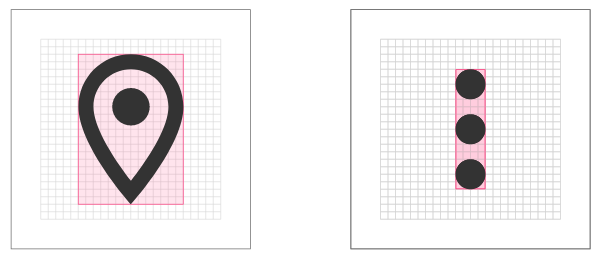
Same as for the above, no manual resizing needed if using Material Design or other out of the box icon sets. The guidelines above are for reference in these scenarios.