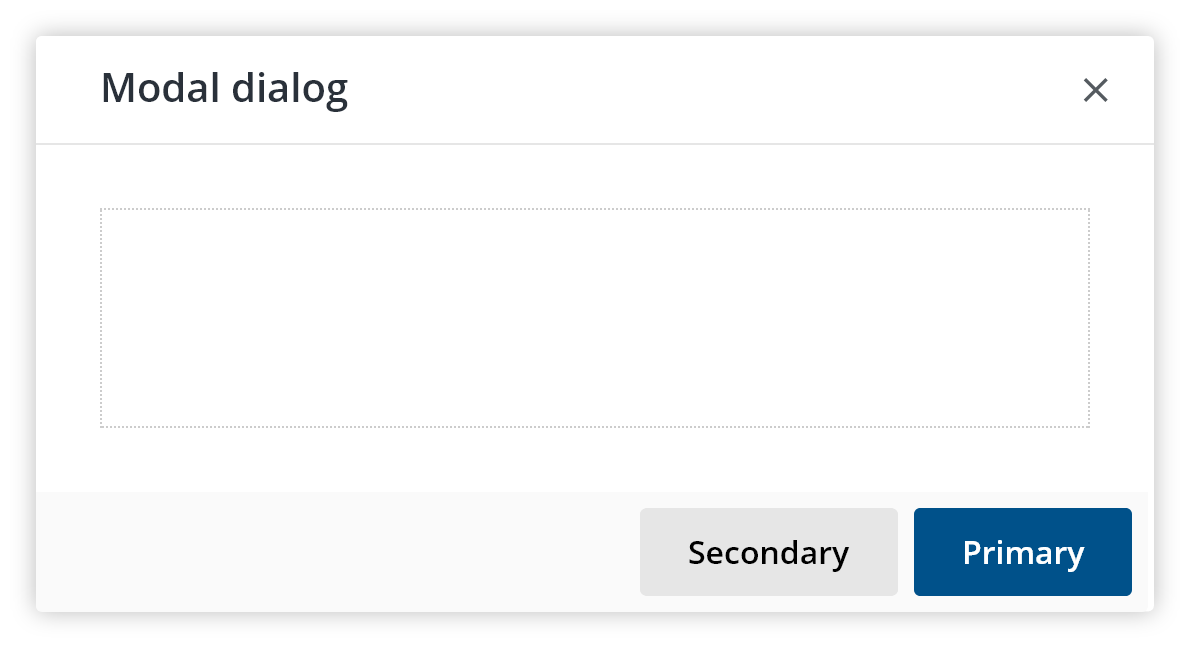
A dialog is a conversation between the system and the user.
Dialogs are triggered by an action when the system needs input from the user and are best when used for short tasks or to alert about task-relevant information.
Dialogs are disruptive so limit the usage of this pattern whenever possible and when necessary, make their purpose immediately apparent to the user and with a clear path to completion.
Use for:
- A short task completion, such as confirming a user's decision;
- Present relevant information concerning their current task;
- Collect input from a user, such as an acknowledgment;
- Focusing the attention of the user when an immediate response is required;
- Urgent information.
Don't use for:
- Dialogs that are not triggered by a user's actions;
- To display large amounts of complex data;
- As an
iframefor another application or full page; - When its content is not relative to the current task.
Use “we,” “our” and “you” to create a sense that we are speaking directly to our customers.
- When creating a confirmation dialog, the text should be clear and consistent;
- The dialog header and body text should clearly convey the action and the consequences of taking said action;
- If possible, the label on the completion button should match the label on the button (or link) that prompted the dialog initially;
- Label buttons with a verb; i.e. "Delete account" as opposed to "Account deletion."
Most dialogs contain the following elements:
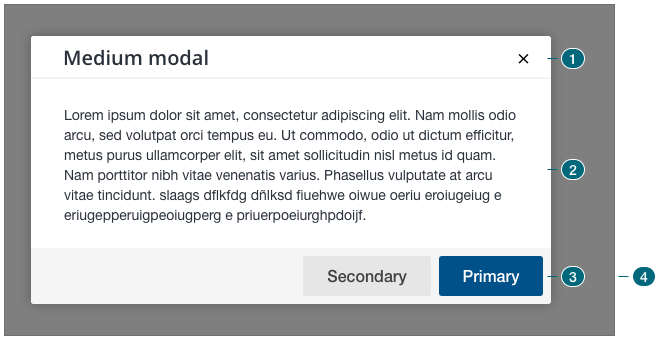
- Header — Dialog title (sentence case) and dismiss button;
- Body — The goal and or controls to complete the dialog's task;
- Footer — Primary and secondary actions.
- Dialogs should always be triggered by a user's action on components like:
- Buttons;
- Toolbar icons;
- Links.
- Tab focus should be set to the first input field or action button in the case of a passive dialog that contains only one action button.
- Validation on any user input fields should happen before the dialog is closed
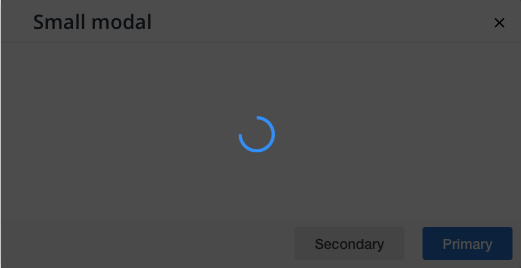
- If a loading sequence is needed to complete the task, a loading spinner and overlay should appear on top of the dialog body (WIP).
In most cases:
- Pressing
TABswitches the focus of input or elements on the dialog.TABorder should be from left to right and top to bottom and from primary action to secondary action; - Pressing
ENTERactivates the selected or focused element; - Pressing
ESCcloses the dialog.
| Type | Priority | Context |
| Modal Modals | Highest priority | Page content is obscured to focus the attention of the user to one task or information until the action is taken or dismissed. |
| Popovers Popovers guidelines | Medium priority | Page content can still be accessed while the dialog is open. |
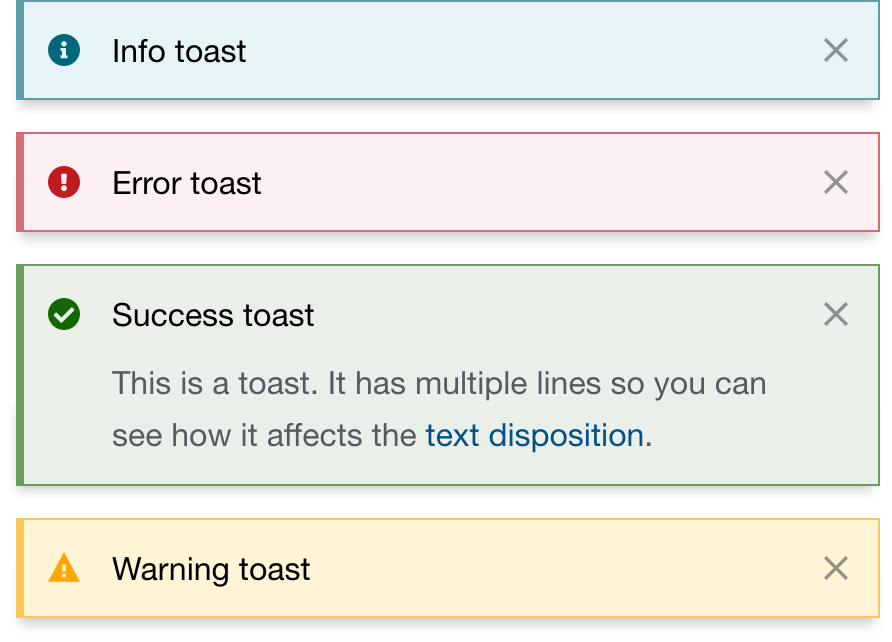
| Notifications Notification guidelines | Low priority | Alerts and toasts appear inline or to the side of the page and disappear automatically or after dismissed by the user. |
A modal dialog interrupts the user flow. It does not expire during the browser session and it stays in the same area until the user takes an action. It surfaces an issue on the application either due to user input or server response.
Good examples of using a modal include:
- When an immediate response is required;
- Confirming a decision by the user;
- Displaying information that is urgent.
Don't use modals when the user needs to reference information contained outside the modal.
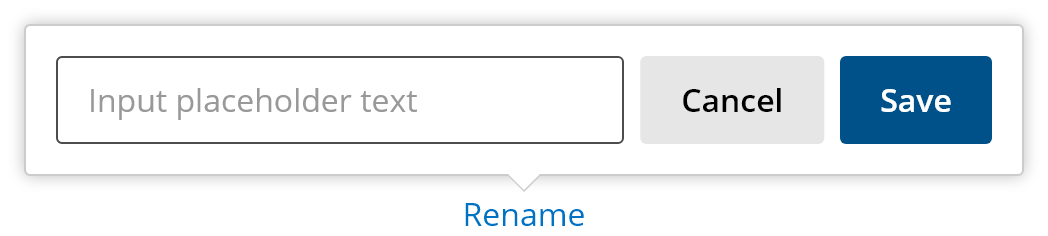
A popover dialog is a brief, persistent, non-disruptive message returned in the UI based on user action. It is displayed as part of the page on the same Z-index as the page's content.
- Use when access to the current page/task is still needed;
- To streamline a user's workflow;
- Display additional information;
- When a response from the user is not required.
Notifications include inline alerts and toasts (snack bar). They are generally used for:
- System status or changes;
- Validation messages;
- Event notification.
- The action's "stop" button on a dialog should always be on the left; the complete button should always be on the right;
- In most cases, either action or stop triggers should close the dialog;
- If the dialog action has been completed, display a clear success message reiterating some of the specific data from the dialog;
- Avoid using components or links that take the user away from a dialog;
- Avoid collapsible components that hide information;
- Avoid complex interactions overall;
- Change the focus into the dialog when it is triggered;
- Keep the focus on the dialog until it is closed;
- After the dialog is closed, return the focus to the element that triggered it;
- Tab focus should be set to the first input field This is or action button in the case of a passive dialog that contains only one action button;
- WAI-ARIA authoring emphasizes keyboard usage for opening and interacting with modals.
We would like to get your feedback. Tell us how you use this component in your projects and how we can improve it.
For more information on modals, read the respective guidelines.
For more information on popovers, read the respective guidelines.
For more information on toasts, read the respective guidelines.