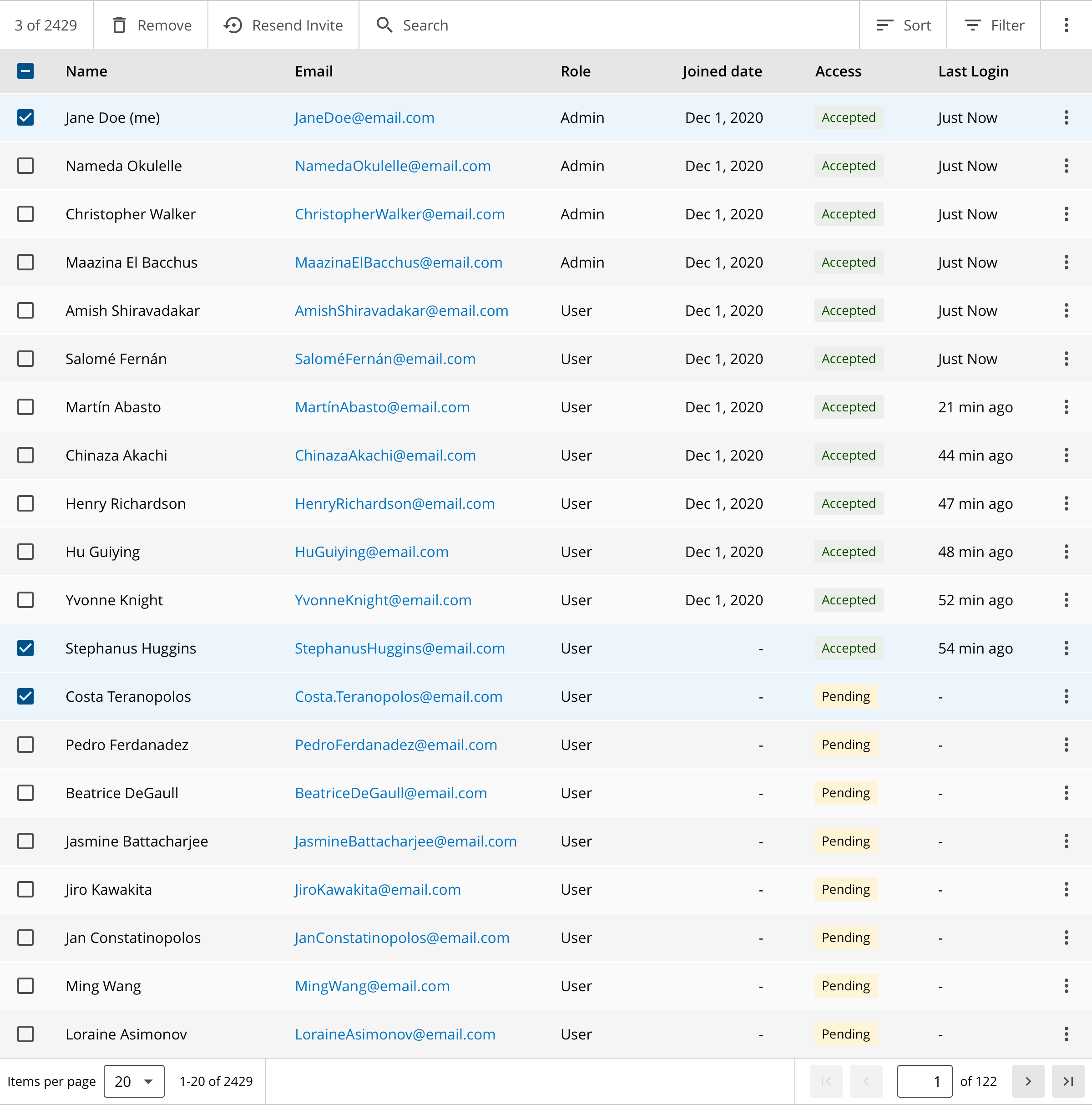
Tables show a large amount of discrete data with multiple categories
Data tables are best suited when communicating multiple sets of data and multiple different units of measure.
Data tables should allow:
- Searching by a keyword via a search box placed at the top of the table. It searches the entire table, not just the current result set;
- Filtering via a dropdown. UI control is placed at the top of the table;
- Sorting via up/down arrows in the column header and a sort icon on top of the table which is useful on mobile devices and when sorting by criteria not visible in the table;
- Hover actions on desktop (or tap on touchscreens) to help declutter the interface;
- Inline actions;
- Batch actions;
- Quick-view via overlays, modals, or slide drawers.
- Links, use of internal or external hyperlinks;
- Pagination, the ability to set the number of rows per view and navigate to the next page.
- Left-align text and alphanumeric values (for the left to right languages);
- Right-align numerical data headers align with the data on their column;
- Don’t align any content to the center.
- Display only the essential columns;
- Keep colors to a minimum. Shading and other design elements should be faded into the background while allowing the data to stand out;
- Reduce visual clutter on data-heavy tables through the use of tooltips overlays and drop-downs;
- Use fixed header*;
- Provide a summary graph at the top of the table*.
- Header cells should utilize the
<th>tag andscope='column'orscope='row'attribute. - Data cells should utilize the
<td>tag. - If an icon or link is used inside of a table, ensure a touch target of at least 44px (on desktop as well).
Where tables are used in responsive design, ensure display in medium and small browser views by employing one or a combination of these methods:
- Using
data-attributes in table cell tags, combined with media query CSS to transform each cell into a stacked row. Many versions and tutorials on this method are available, including this one by Matt Smith. (See link for a visual example of this method.)- Pros: This method is widely supported and accommodates a lot of data legibly.
- Cons: By stacking the data, comparing cells becomes more difficult.
- Suppress less important columns where possible, allowing the remaining cells to fit comfortably in portrait mode on common mobile devices.
- Pros: Supports the original goal of the table, keeping the contents scannable and comparable.
- Cons: May eliminate useful information for the user. (In general, tables should not contain much information that is not necessary for the user. However, the circumstances under which the user uses a mobile device may change which pieces of information are more important.)
- Add horizontal scrolling to the table’s parent object, while including some visual indicator that more content is available beyond the current view screen. Indicator might be a visible horizontal scrollbar or a gradient overlay.
- Pros: Requires less coding and maintenance while displaying all the table data.
- Cons: Horizontal scrolling is not always touch-device friendly; users have a hard time maintaining a connection between identifying cells. Creating the visual indicator of "more" can also be unclear.
We would like to get your feedback. Tell us how you use this component in your projects and how we can improve it.