One of the most important type of interaction for clients using our products. Don't just put together a form, design it.
Forms can be one of the most important user patterns in our products. They help users complete tasks, configure system settings and most importantly, handle registration, purchasing, and support flows.
General considerations when using forms:
- Organize related inputs into groups;
- Use logical sequencing to arrange input groups.
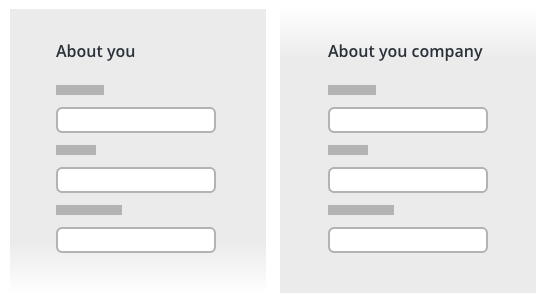
- Use a single column layout for single forms;
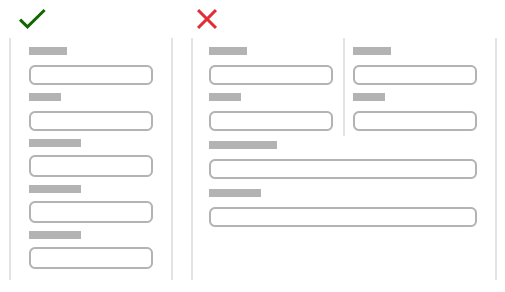
- If the design requires more than one column, the recommendations are:
- Break up your fieldset into a multi-step form.
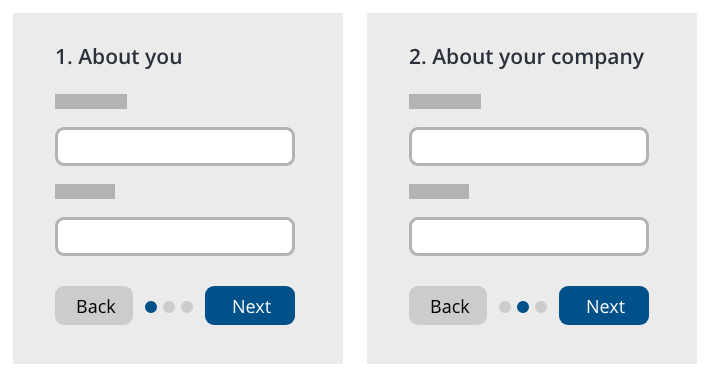
- Organize related inputs into groups and use logical sequencing to arrange said groups.
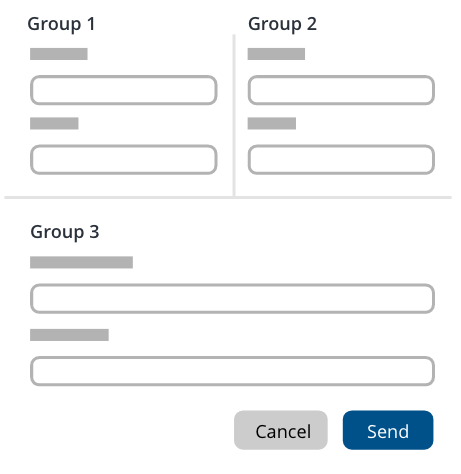
- Use field sizes that match the type of input;
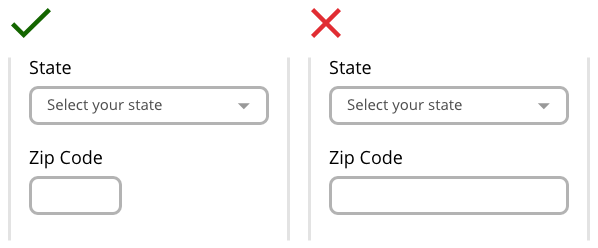
- Remove fields that collect information that can be captured more conveniently at another time or location e.g. a phone number;
- Implement multi-step forms whenever possible to avoid long forms.
Use “we,” “our” and “you” to create a sense that we are speaking directly to our customers.
Some of the most common form elements:
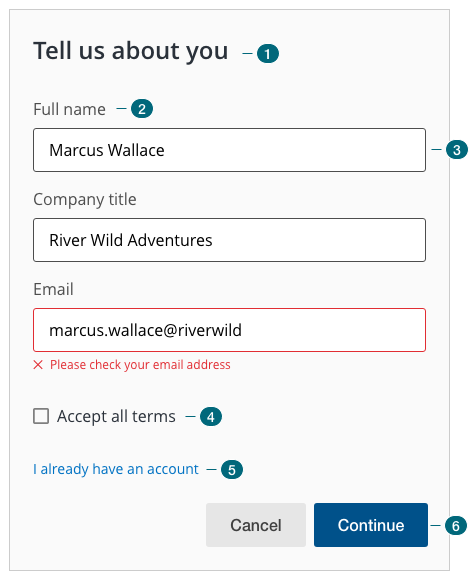
1 - Header
Including straightforward headers help users understand the overall purpose of a form.
2 - Labels
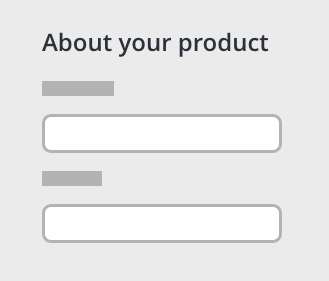
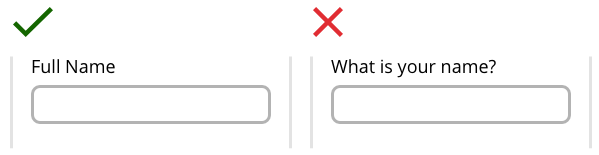
Labels inform the user of the meaning of the corresponding input. Use short, clear text for labels.
3 - Input fields
Don't just put together with input fields, design the form to ask only what is really needed, conversion rate is affected with every input field that is added to the form.
Clearly label required fields so as to avoid user trial and error.
[Input field guidelines (WIP)]
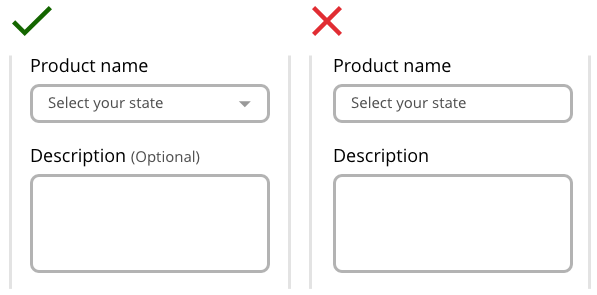
4 - Selection controls
- Use radio buttons for users to choose one option for a set of mutually exclusive choices. Only one option can be selected at a time. Radio button guidelines (WIP);
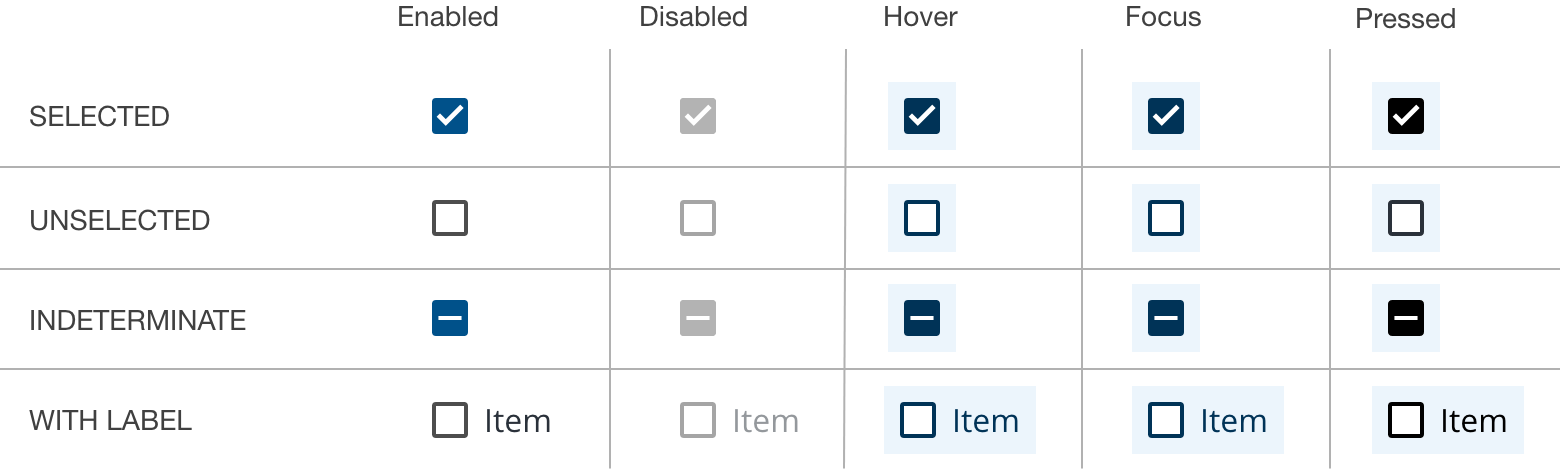
- Use checkboxes for users to select any number of independent options from a list or to turn a setting on or off. Checkbox guidelines (WIP);
- Toggle switches allow users to change the state of an element to opposing states, like yes or no. Toggle switch guidelines (WIP);
- Dropdown lists can be used for various purposes like menus, search, multi-select, attribute selection, and others. Dropdown list guidelines (WIP).
5 - Buttons
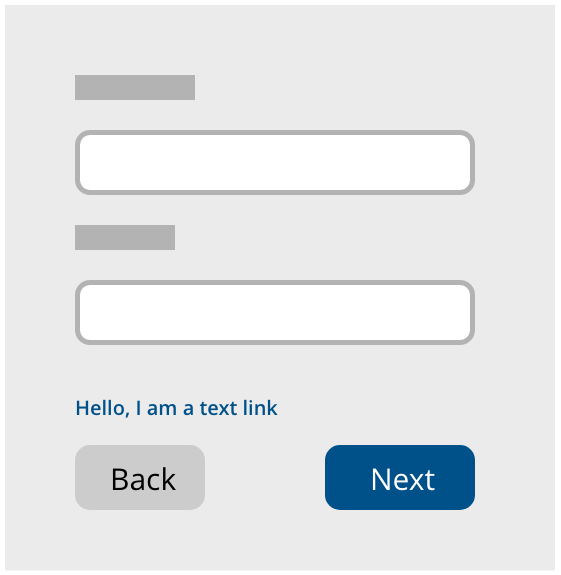
Buttons should generally be placed in order of importance from right to left. Primary buttons should be placed on the right while secondary buttons on the left.
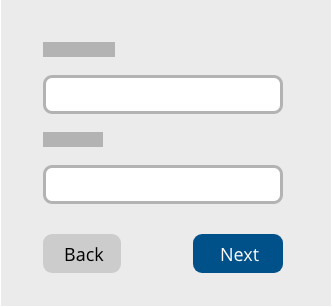
Exceptions to this rule include:
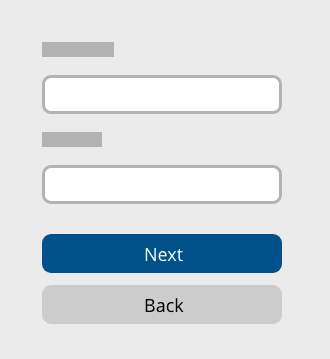
- Small containers or when a container reaches a mobile breakpoint in which case the primary buttons go on top and the secondary button on the bottom.
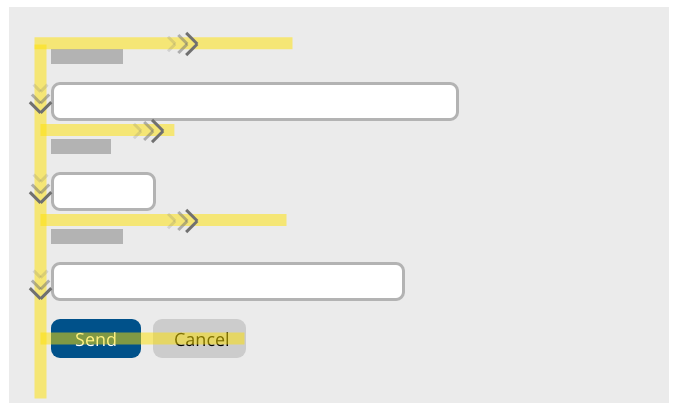
- A form in an unconstrained container, such as on a page itself, where an F-pattern is a more natural way to go through the content.
6 - Links
Forms commonly require actions other than a simple submission. In some cases, these actions should be performed by buttons and in others, by links:
- Cancel
- Forgot password
- Actions within tables (e.g. "Remove" link in a list, which performs a form submit)
- Any other action that does not initiate a data transaction (but rather navigates to a different resource).
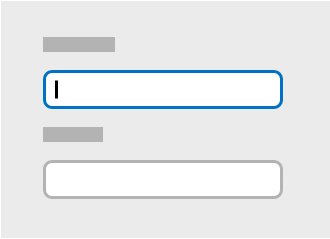
When presenting a form on a screen or a modal, always set the state of the first input element to focus.
Don't make validation too strict.
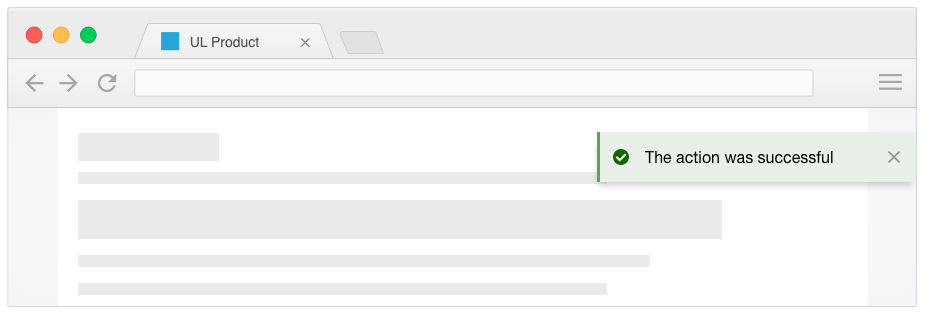
Indicate success by including a visual notification in the resulting view. This can be a dismissable inline alert or a toast notification.
When a view does include a form with error fields, an alert should be visible at the top of the view with a generic error message. Do not list individual field errors in this message. Specify these errors by styling each invalid input. Be consistent with the placement and styling of these types of messages.
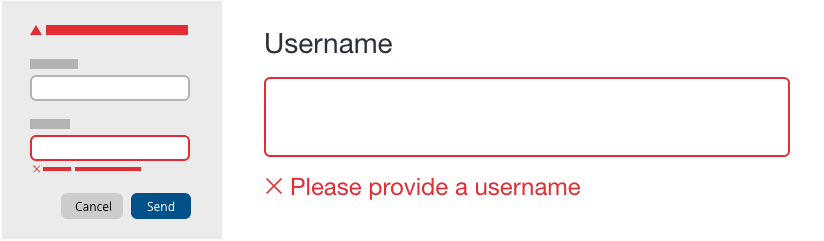
- Use the proper writing tone;
- Be specific — explain what happened;
- Provide concise detail;
- Avoid technical language;
- Be friendly.
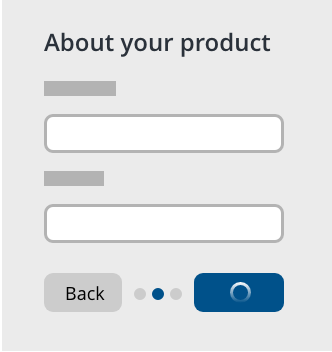
Multi-step forms or forms utilizing progressive disclosure to lessen the impact of a long-form should include a loading sequence between steps in the case of encountering server wait time.
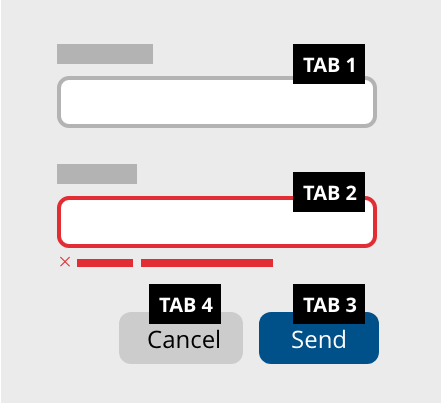
Users should be able to focus on and edit every field in the form using only the keyboard. Tab index should be documented for every form sent to development.
Order a form logically from a user's perspective rather than from the application or database's perspective. Asking a user for their state before their country of residence would be unusual.
Forms should always be left-aligned except on smaller containers or as a result of a responsive breakpoint when they would expand to 100% width.
- Avoid using multiple fields for one piece of data. For example, prefer
Full nameoverFirst nameandLast name; - Avoid using a
Resetbutton; - Consider radio buttons instead of dropdown lists whenever possible;
- Use conditional logic to shorten forms whenever possible;
- Use selectable images whenever possible to increase engagement;
- Always optimize the speed of forms (load and submit).
- Touch device behavior and display of inputs will impact your form, so consider your audience usage when designing. Mobile browsers may default to capitals, zoom unexpectedly, implement special field types differently and employ different fonts, among other considerations. Think about including attributes like
autocapitalize, which only impacts virtual keyboards and voice-to-text input; - Always offer field focus on mobile devices;
- Use the mobile device's native form features to simplify tasks.
As with all elements, practice accessible coding techniques with form fields, field-sets, and buttons.
Placeholder text is considered bad for accessibility because:
- They have a poor color contrast;
- Adds to the cognitive burden by disappearing when entering information;
- Placeholders with proper contrast make fields seem filled.
Resources
- Form WAI-ARIA Authoring
- Checkbox WAI-ARIA Authoring
- Radio WAI-ARIA Authoring
- Range Slider WAI-ARIA Authoring
- Number Spinner WAI-ARIA Authoring
We would like to get your feedback. Tell us how you use this component in your projects and how we can improve it.
This example is not to scale. Click to inspect.

Where appropriate, use HTML5 input types to ensure ease of use, particularly on touch devices. The email input type is especially useful in mobile browsers, but all types to consider include:
emailrangesearchtel*url
*Note: On mobile devices, tel type puts the user into the number keypad rather than the regular keyboard. Use tel as the preferred type when coding a numbers-only input.
Use the following types with caution, as the implementation in some (or all) browsers may be confusing and vary dramatically in presentation:
monthcolordatedatetimedatetime-localtimeweek
All major browsers support the number input, but display may vary. Because several browsers include some kind of spinner UI (up/down arrows to increment the input), some users may be confused by the type of field, while others are familiar with it. To mitigate this problem, you can use input attributes and browser-specific styling in your implementation, or consider an alternate input, such as tel.
Forms should generally be executed with input elements of type="submit". Use this tag rather than <input type="button">.
Attach all JavaScript triggers to form and field events, however, rather than click events of a button or link. The allows users to submit forms or tab through form fields with keys, within a touch device keyboard, or by other methods (especially those used by accessibility browsers); attaching events to form submits circumvents problems that may arise from any alternate input scenario.
In most cases, JavaScript validation is not necessary. Some situations may make client-side validation more useful to the user, however.
You may potentially want to use client-side validation when:
- the form is submitted via AJAX. Generally, this will make action flow more fluidly for the user.
- the form contains a file upload input. Because of security issues, uploaded files are detached on page load, which makes round-trip validation poor UX (as the user is forced to reattach the file). (Note that some browsers expose more attributes of uploaded files than others, making specific validations relating to file size, type, etc., inconsistent across browsers.)
- the form contains typeahead inputs that might be lost upon reload.
- moving from page to page in some kind of creation Wizard. Whether this pattern applies may depend on how the Wizard is implemented and dependencies between input fields from page to page.
- looking for specific patterns on fields such passwords, where the text is obscured from view.
While client-side validation is often an expedient and helpful pattern, consider certain drawbacks:
- Because resources may be much slower to load in mobile devices, users may begin filling out forms before JavaScript is applied to the form, leading to uncertain execution.
- Is the validation executed on submit or on field change? Users commonly skip or half-complete fields for many reasons while filling out a form, and preemptive errors can lead to frustration for the user.
- Browser autocomplete may act in unexpected ways, resulting in a false test outcomes.
- If a form is long (or a viewport too small), inputs may be out of view on form submit, requiring a scripting solution.
- As always, consider how JavaScript will interact with assistive technology devices and software; ensure the user gets a clear idea of what is happening by employing alert dialogs as described by WAI-ARIA best practices.
- Do not put the user in "double-jeopardy" if at all avoidable. This means the user should rarely see a second set of errors after satisfying errors shown before form submit.
- To avoid the above scenario, validate on form on submit rather than on input. However, a multistep input, such as typeahead field or password confirmation, may be validated on change for better interaction flow.
- Implement the same error styling to the elements as the user would see from a server-side validation.
- Clear errors on re-validation. Depending on the input type, as in the case of password field, it may be possible that clearing the error on field change may be more helpful to the user.