Allow users to select a value or range from a fixed set of options
Sliders are often the UI control of choice for letting users select a value or range from a fixed set of options. The main purpose of a slider in the first place is to allow users to explore options.
The slider component is often compared to a volume control: the further the thumb or indicator is away from its initial position, the faster, better, or higher the value it is.
Overall, avoid using a slider unless your application and data can absolutely benefit from it. Selecting a precise value using a slider is a difficult task requiring good motor skills.
Before deciding on a slider, ask yourself this: is a slider the right solution for this problem, or should you use radio buttons or checkboxes instead?
- Sliders work best to indicate inclusion, progress, growing size, or intensity.
- Use when specific values do not matter.
- Use on narrow and light data ranges.
- Always display slider increments.
- Sliders require lots of space. Plan accordingly.
- Use sliders in conjunction with other data to better display range.
- Optimize data for a more responsive slider. A slider should never freeze.
- A slider is a great option for any interaction related to a timeline.
- Do not use for limited options.
- The wider or denser the range of values, the harder it is to select a precise value.
- Sliders are not a good option when exact values are required.
- Do not use in tight spaces.
- If data is updated synchronously, a slider will feel slow and clunky.
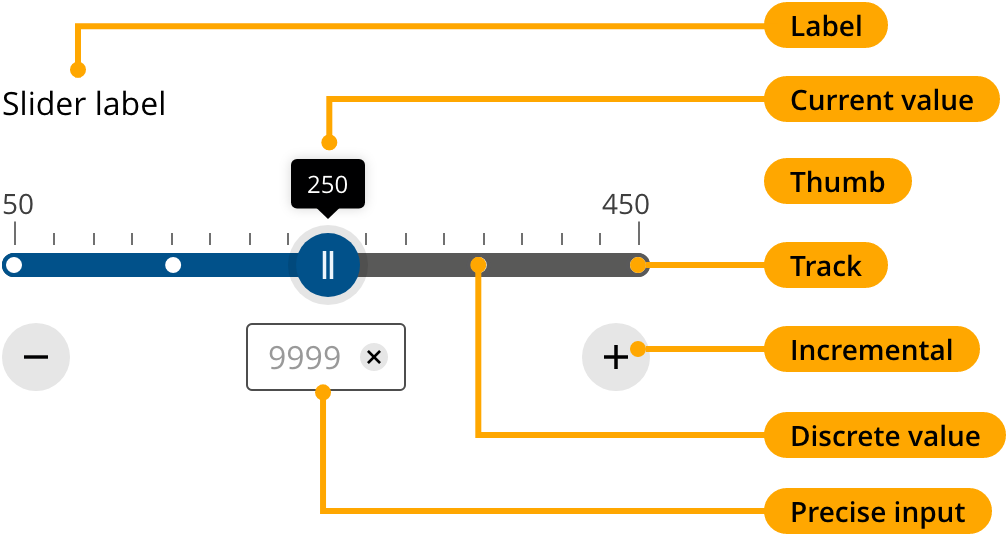
The wider or the denser the range selectable through a slider, the harder it is to select a precise value.
If the scale of your slider doesn’t account for the distribution of values in your data, then providing an accurate range becomes a frustrating experience.

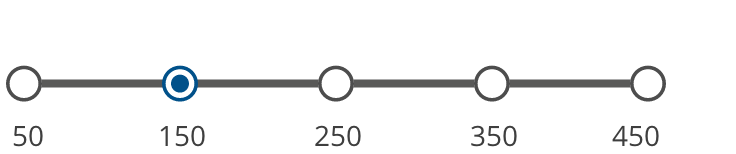
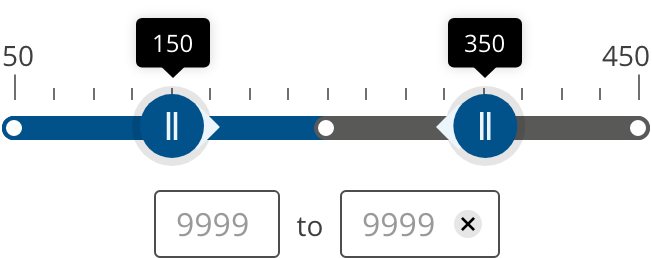
Validation in the precise input field should be handled by limiting its input type to numbers, <input type="number"> and implementing a max attribute, min="1" max="5" based on the range scale.
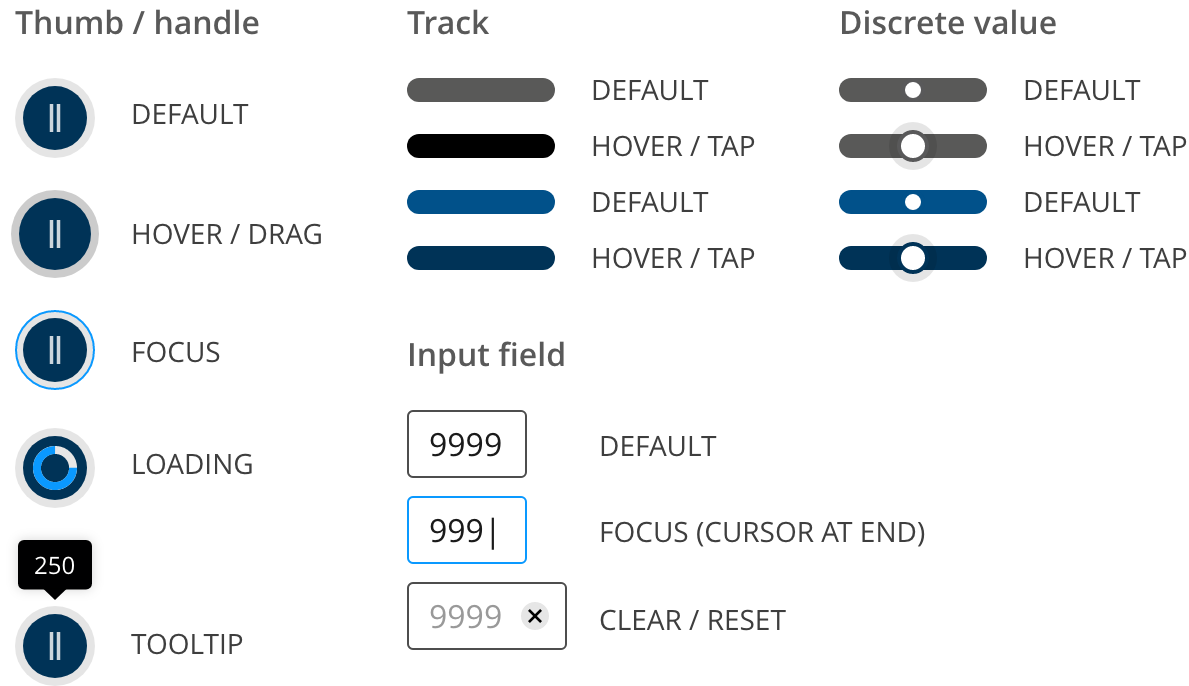
In case it is necessary, use the thumb's loading state to indicate progress.

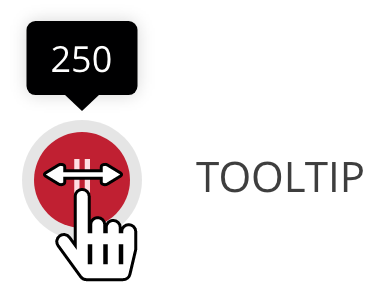
A tooltip state is shown above the thumb when this is dragged, showing the current value.
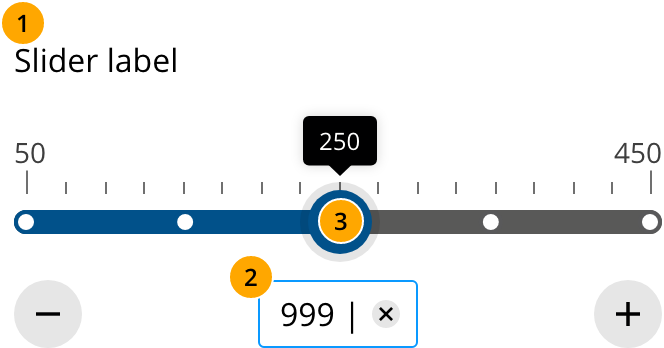
| Focus | Key | Action |
|---|---|---|
| Slider label | Read the label | |
| Input field | ENTER |
Enter value |
| Input field (Dual slider) | TAB |
Moves to secondary value input |
| Thumb | Arrow keys HOME END PAGEUP PAGEDOWN |
Move thumb left and right Move to the start value Move to the end value Jump forward by increment Jump backward by increment |
| Any element | ESC |
Exits the slider |
To be effective and easy to manipulate, sliders need space but, most importantly, a lot of horizontal space. The thumb has to be large enough and the track has to be wide enough to jump to the tick marks.
According to spacing recommendations in this article:
So, how large is large enough? If you can ensure that the horizontal spacing between critical tick marks is at least 65 pixels — on narrow and wide screens alike — that’s probably a good amount. And then there is the actual thumb and getting comfortable padding around it, so that the thumb is easy to grab and move across the track. In general, experiments show that making the thumb at least 32 × 32 pixels (rectangular or circular), with
3vw** or**1.5vmax** padding** (the former on narrow screens, the latter on wide screens) around it, seems to work fairly well. In fact, just from going through dozens of slider implementations, we see that the most usable ones hit that sweet spot well.
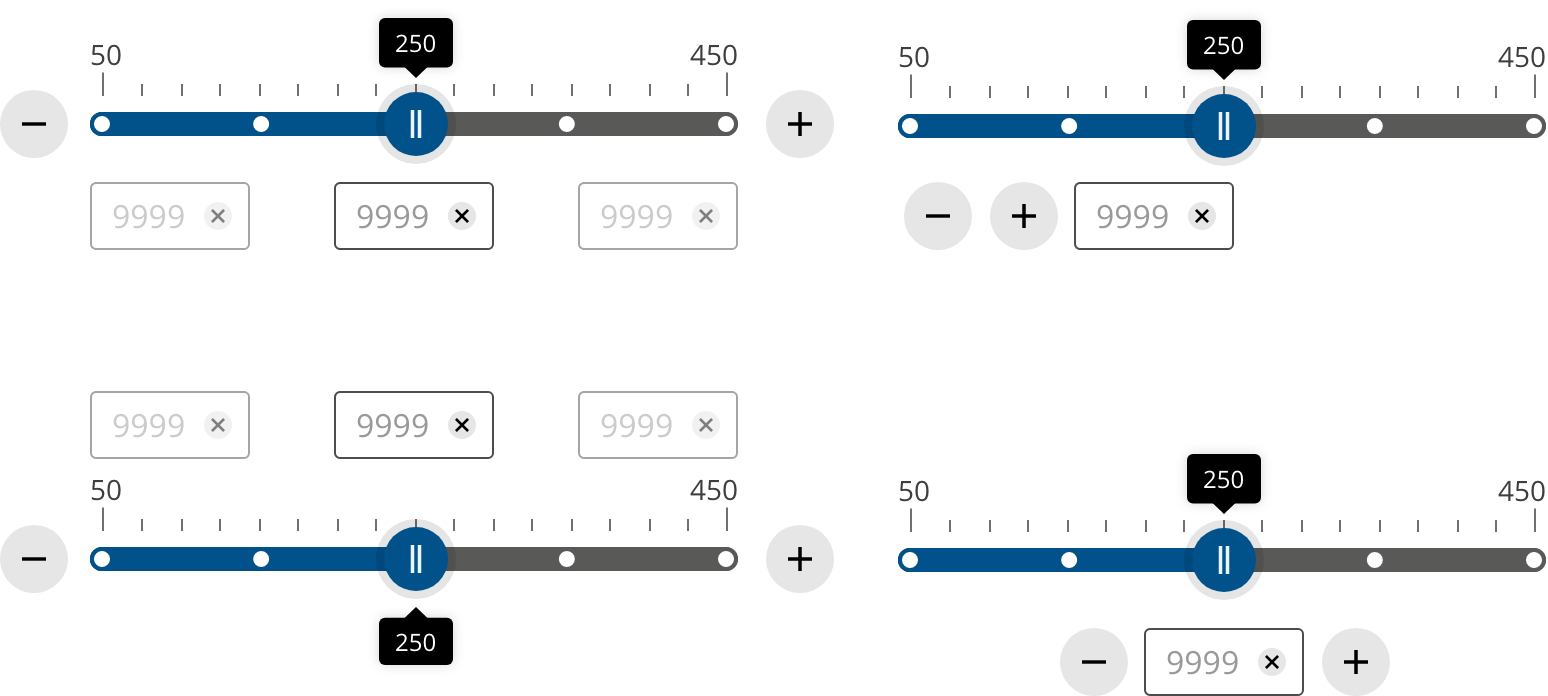
The elements that make up the slider components should always be grouped together and they may be arranged as displayed in the variations section or as displayed below.
- Ensure that the proper ARIA attributes exist when implementing the slider component. Use the code provided for reference.
- Implement the suggested keyboard navigation.
- Do not change or modify the sliders colors as they comply with accessibility contrast guidelines.
As stated in the Spacing section, sliders require ample space to be effective. Always test your sliders in the various breakpoints to ensure they are functional.
We would like to get your feedback. Tell us how you use this component in your projects and how we can improve it.

Feature: Slider Background: Single value Given the slider holds a single value
      Scenario: Tooltip on hover When I hover the thumb Then the value tooltip shows
      up Scenario: Tooltip on drag When I drag the thumb Then the value tooltip shows
      up Scenario: Overdrag When I drag the thumb beyond the ruler size Then the thumb
      stays at the edge of the ruler Scenario: Update input field When I update the
      input field Then the thumb moves to the correct field Scenario: Update through
      drag When I drag the thumb And I let go of the thumb Then the input field
      updates with the new value Scenario: Increment through button When I click on
      "+" Then the thumb moves to the next step Scenario: Decrement through button
      When I click on "-" Then the thumb moves to the previous step