A non-disruptive, non-modal dialog used to display additional information about an associated element.
A popover dialog is a brief, persistent, non-disruptive message returned in the UI based on user action. It is displayed as part of the page on the same Z-index as the page's content.
Popovers provide a floating element that is subject to the context from its associated element.
- Use when access to the current page/task is still needed;
- To streamline a user's workflow;
- Display additional information;
- When a response from the user is not required;
- Use a popover when providing stand-alone information, such as explanatory text or extra information of indeterminate length.
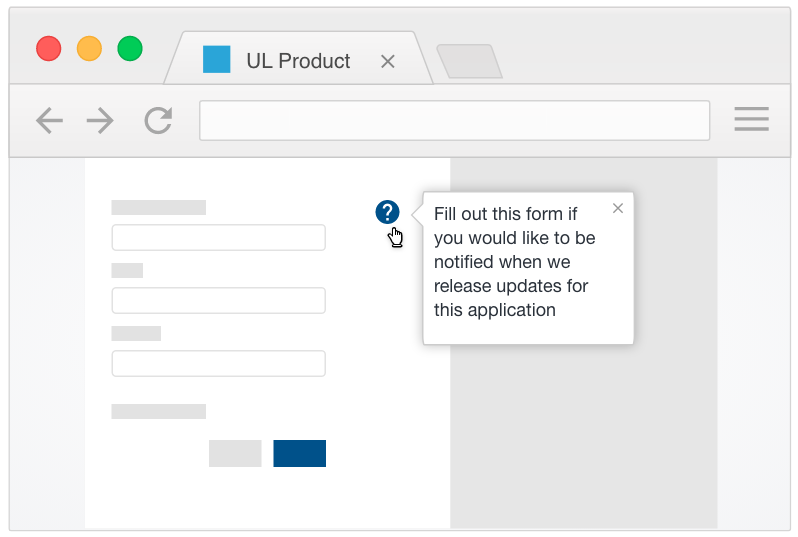
Use “we,” “our” and “you” to create a sense that we are speaking directly to our customers.
Meta information, such as help text and input examples, may be supplied to the user via popovers. System-level alerts and confirmations should use notifications instead.

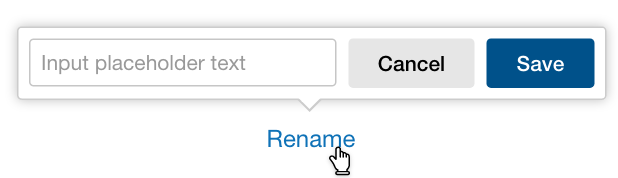
Transactional popovers are small and passive popovers are tiny.
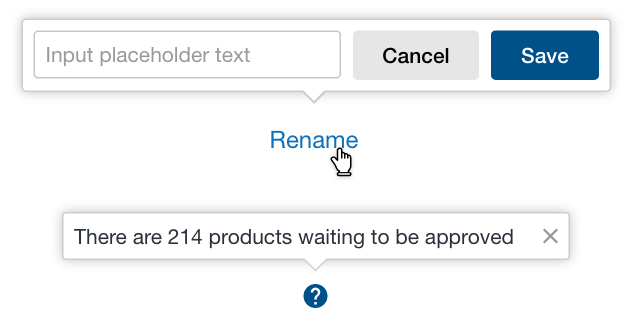
- Popovers are triggered by a user action, generally by clicking on an inline element.
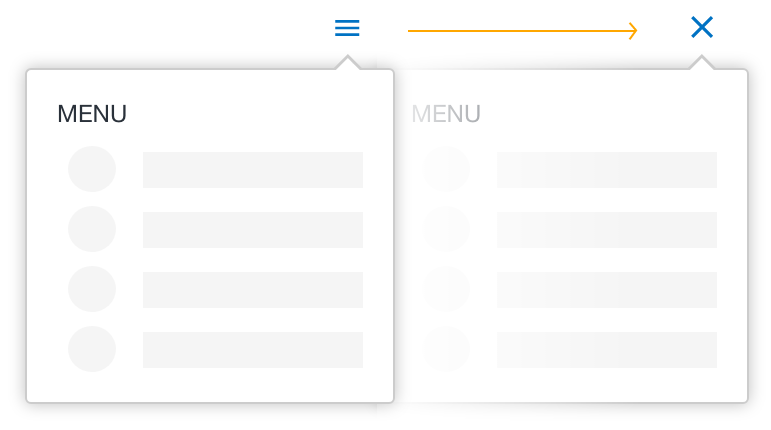
- The trigger element that opens the element should also close it, in some cases, triggers should toggle to open and close states accordingly.
- Triggering a new popover does not necessarily require closing other open popovers.
- In most cases, prefer triggers that open the component explicitly, rather than supplementally. For instance, do not automatically open a tooltip when a user focuses on an input field; provide a separate link to open the element.
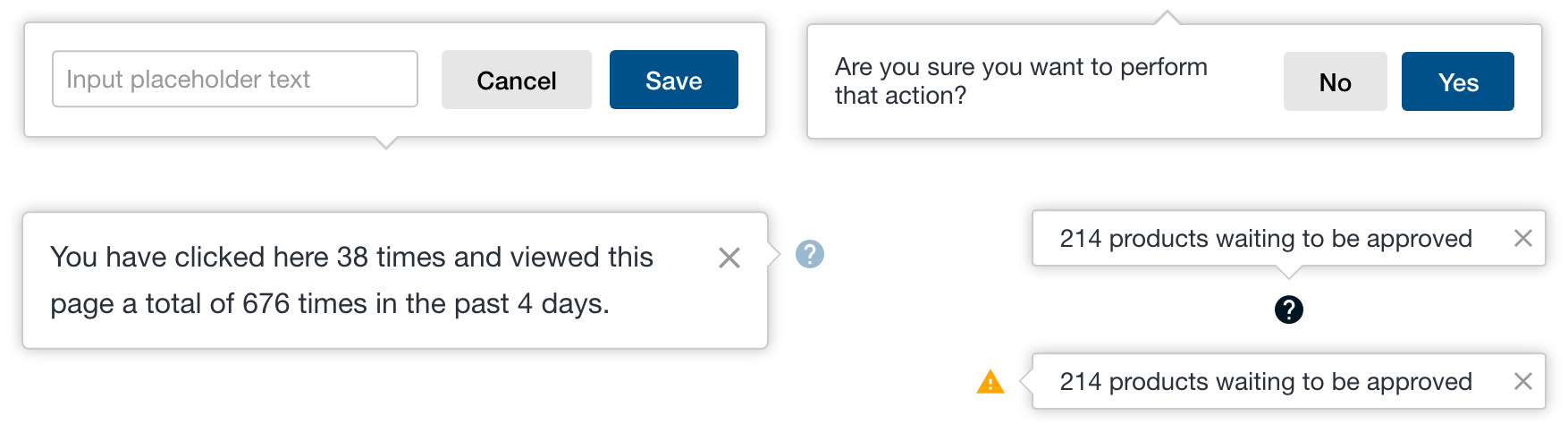
Transactional popover
- Dismissed by completing the task;
- Pressing the
cancelbutton; - By clicking the
xicon in the upper right corner; - By pressing
ESCon the keyboard.
Passive popover
- Dismissed by clicking the
xicon in the upper right corner; - By pressing
ESCon the keyboard.
Transactional popovers containing form elements should have a focus set on the first element to allow proper keyboard navigation.
Even though popovers appear to float on a layer above all other content, they should be displayed as part of the page on the same Z-index as the page's content so they don't interfere with navigation and dropdown menus.
Unlike tooltips, popovers can be aligned to an additional 8 positions depending on the type of content or placement on the screen.
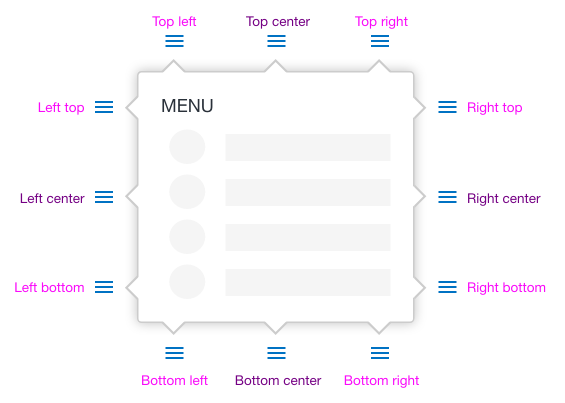
Center positions
Center positions are ideal for tooltips containing a single line of content.
Top left and right
These positions are ideal for trigger elements positioned on the top half of the page.
Bottom left and right
These positions are ideal for trigger elements positioned on the bottom half of the page.
Left top
This position is ideal for left-aligned trigger elements on the top half of the page
Right top
This position is ideal for right-aligned trigger elements on the top half of the page
Left bottom
This position is ideal for left-aligned trigger elements on the bottom half of the page
Right bottom
This position is ideal for right-aligned trigger elements on the bottom half of the page
Popovers are non-modal elements and should never be used as a modal replacement. They should be short, practical, and easy to understand / complete.
Popovers should never truncate text or have scrolling, if the content they are intended for doesn't fit, consider using a modal instead.
Include ARIA attributes in the trigger and display elements.
- The element that serves as the popover/tooltip container has
role=tooltip. - The element that triggers the popover/tooltip references the popover/tooltip element with
aria-describedby.
Due to responsive requirements, using popovers poses logistical difficulties, but may be used judiciously. Length of text is the primary consideration for usage, but function also plays a role.
Because of touch requirements, trigger both components with click events rather than hover or mouseover. This will also aid accessibility and usability concerns by avoiding unintended display of information (inadvertent mouseovers).
We would like to get your feedback. Tell us how you use this component in your projects and how we can improve it.
Feature: Floating elements (popovers, tooltips) Background: Subject Given there
      is a floating element with a triangle Scenario: Default direction Given the
      subject has no direction set When I trigger the subject Then it opens to the
      north of the trigger element Scenario: Specified direction Given a subject is
      configured to open to the north When I trigger the subject Then it opens to the
      north of the trigger element Scenario Outline: Out of bounds Given a subject is
      configured to open to the
      <original>
        And it overflows
        <direction>
          When I trigger the subject Then it opens to the
          <adjusted>
            Examples: | direction | original | adjusted | | vertically | n | s | |
            vertically | nnw | ssw | | vertically | s | s | | horizontally | w | e | |
            horizontally | wsw | ese | | horizontally | s | s | | both | s | n | |
            both | nnw | sse |</adjusted
          ></direction
        ></original
      >