An entry point to more detailed information.
Cards are discrete containers that hold summary information in a specific format. They usually hold a title, a body, and a basic set of actions. They can also route to another location in an application since they don't hold the full extent of information for the elements they represent.
- Provide a simplified and more accessible UI.
- Hold multiple different pieces of information and types of media on one page.
- Display multiple calls to action.
- Isolate certain chunks of information and help the user memorize information in a more cognitive-friendly way.
- Skim through vast amounts of information to find what matters to the users most.
- Have each card represent one idea, topic, or product.
- Cards should be scannable.
- Plan your cards’ information hierarchy.
- Leave adequate negative space between your cards.
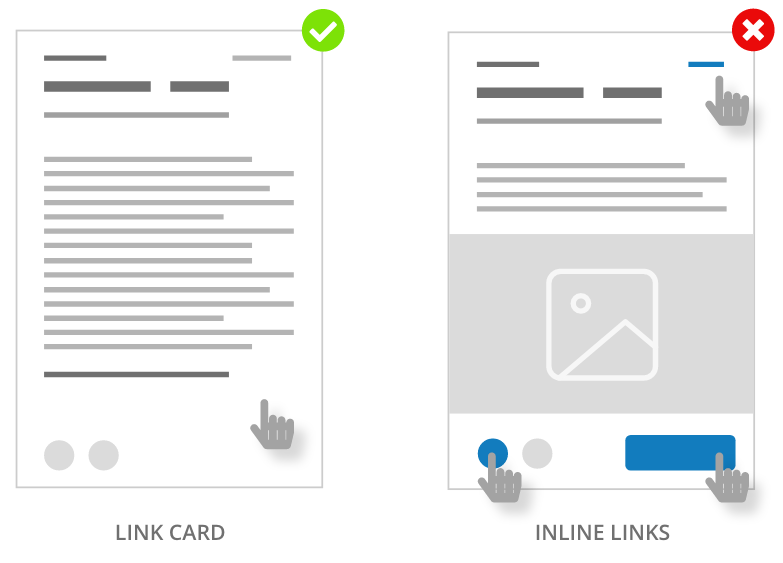
- Make your cards look clickable for link cards.
- Create a consistent pattern for interactions within cards.
- Always plan for responsiveness.
- For homogeneous content.
- Present or hold too much information.
- Do not use a card instead of a list, unless you use a list layout inside of a card.
- Do not use it for content comparison.
- Do not overuse.
The most common pitfall of card-based design is the danger of visual overload. As cards are often used for sites that contain loads of information, they can end up producing a cluttered feel, making it harder to parse the layout visually.
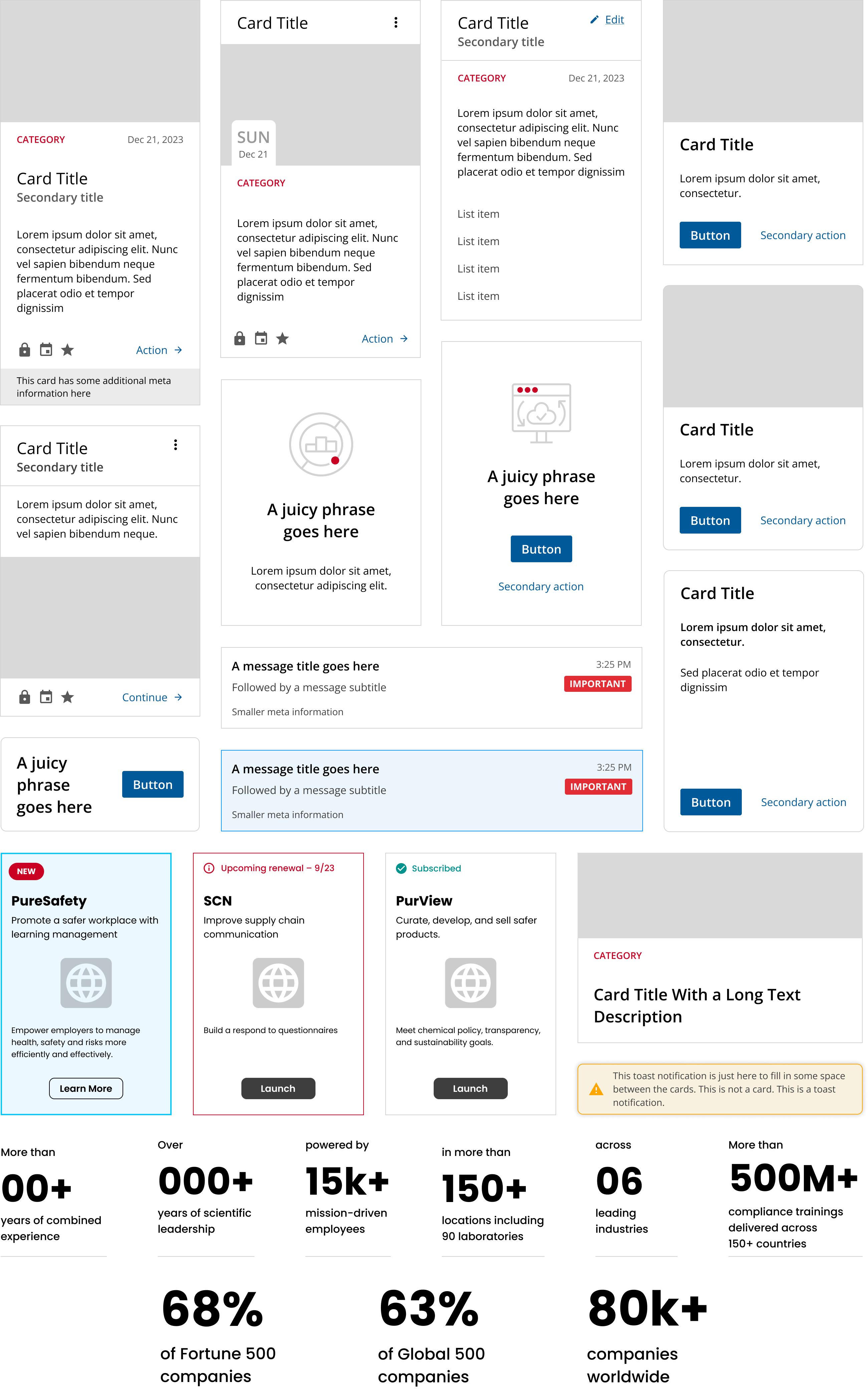
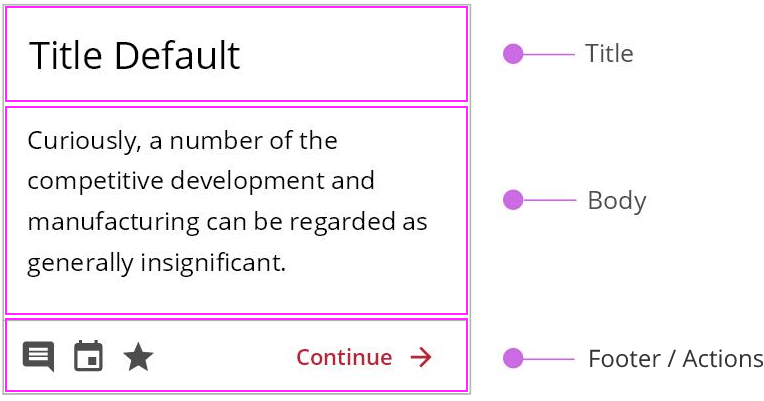
A card holds basic elements like a title, a body, and a footer.
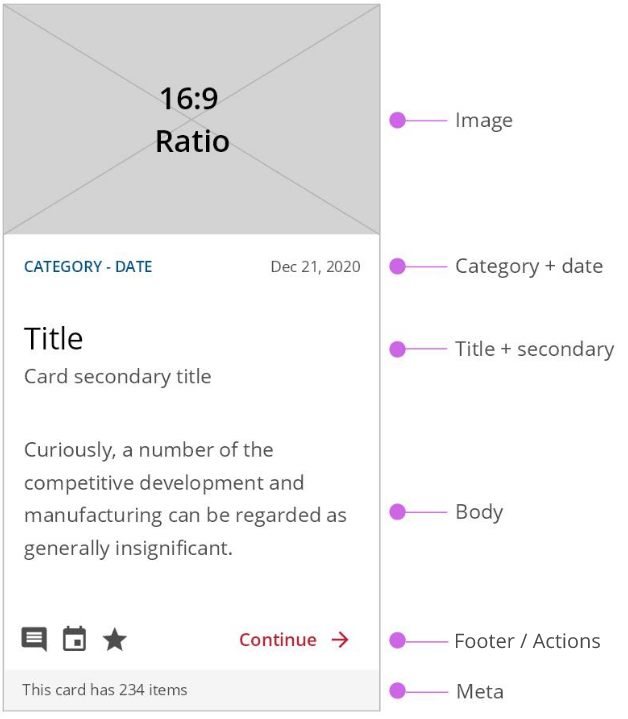
Additional elements include:
- Image
- Secondary title
- Metadata
- Event date
- Category or ID
- Date
Cards should be scannable, meaning, their content should be short and compact. To use cards effectively you must work closely with your content provider to produce the best and most succinct content possible for your cards.
In most cases, cards will be placed side by side in a responsive grid, this means that your content must be able to reduce in size until a responsive breakpoint is reached.
Refer to the alignment rules and responsive sections for further recommendations.
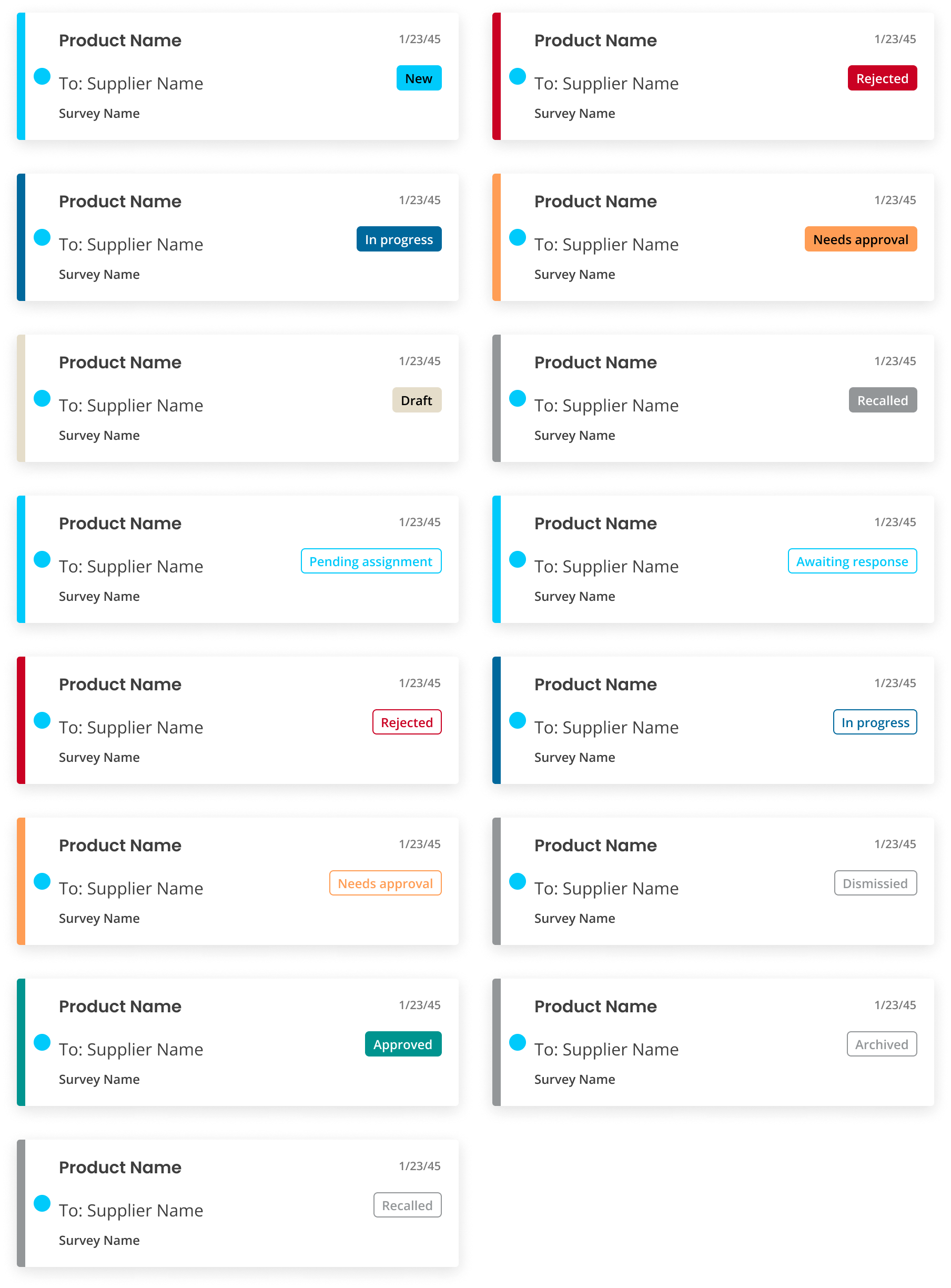
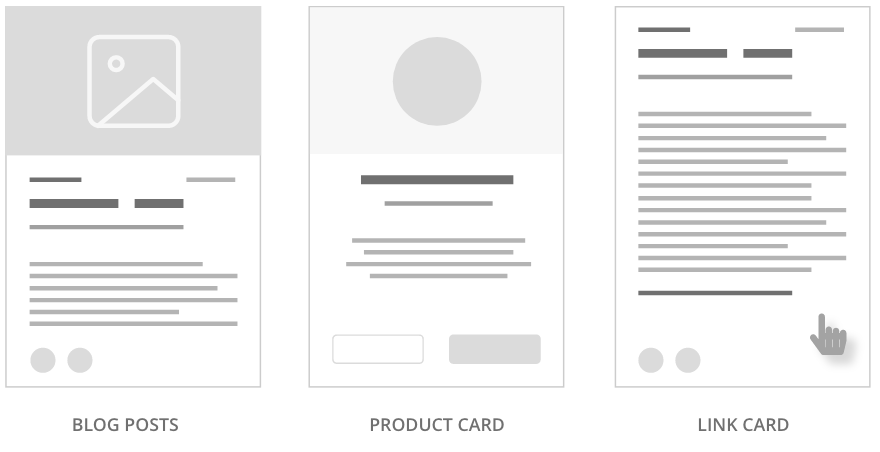
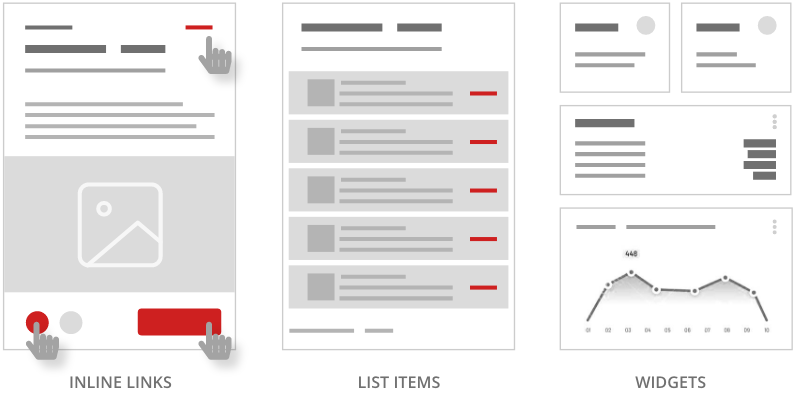
Cards can be used to achieve some of the following variations:
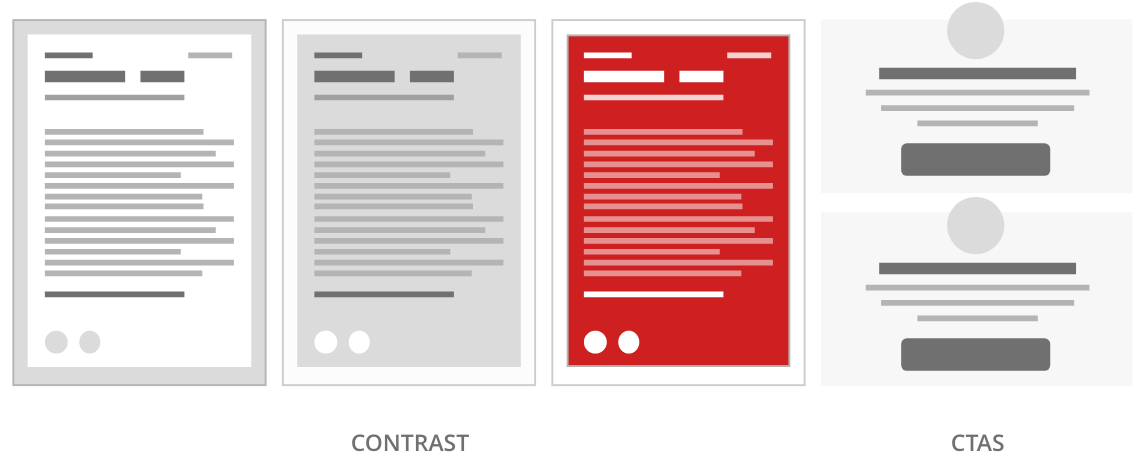
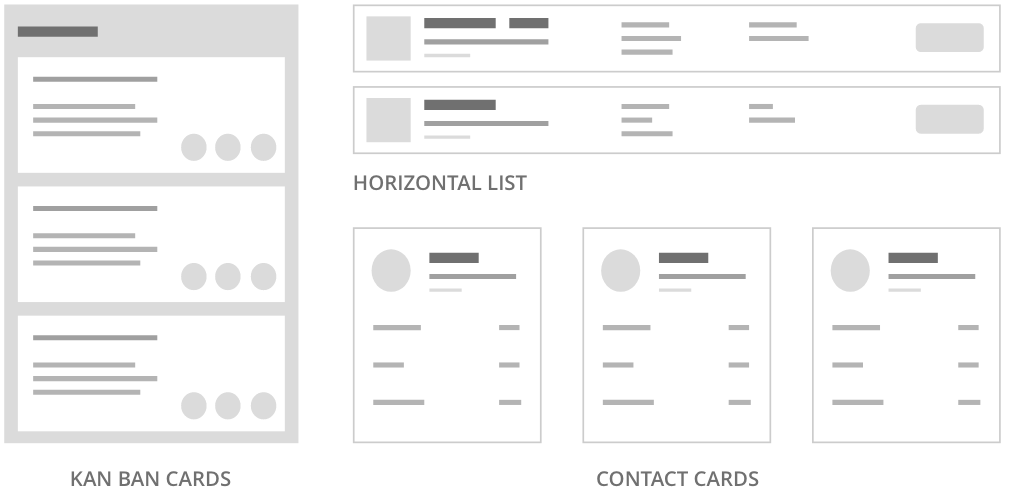
A loading state can be used to display progress while the content is loaded.

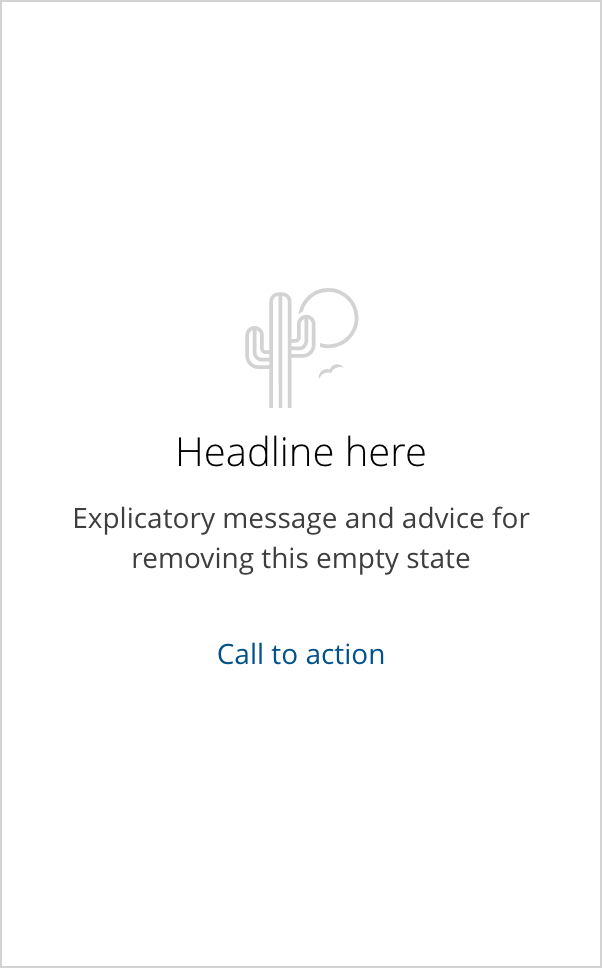
An empty state can be used on a card as a placeholder for future data or signal an action.
The hover state can be used on link cards where the click target is the entire card.
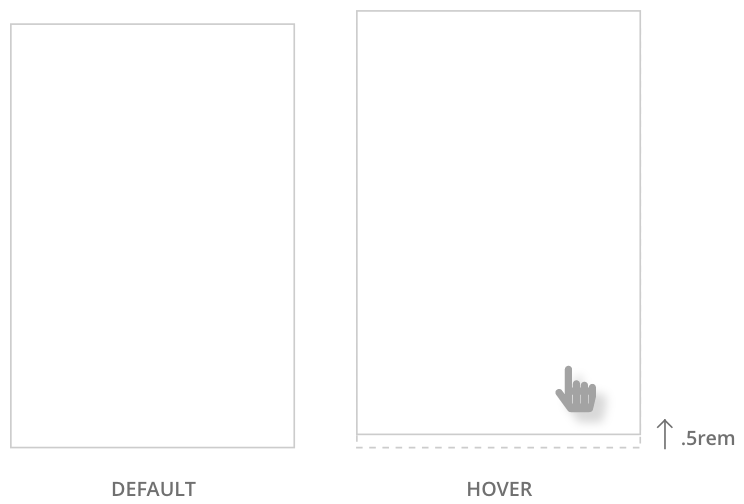
Do not use a hover state on cards with inline links.
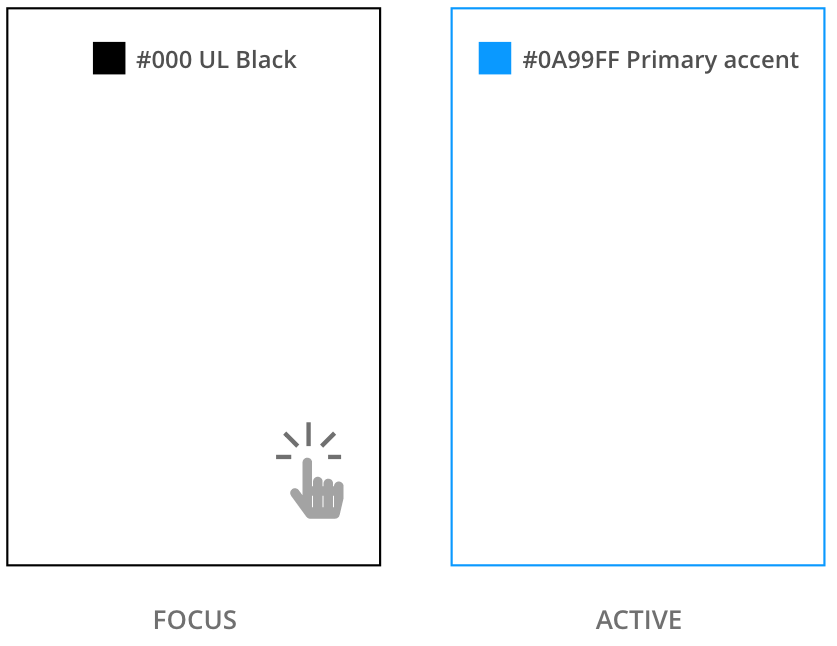
Focus and active states are important for the accessibility of link cards.
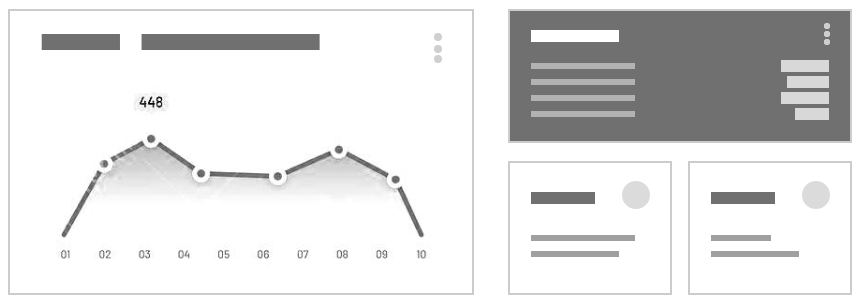
Card design and size can be used to demonstrate the hierarchy of information.
Too much content on a card not only reduces its effectiveness but also opens the door to alignment issues that break the flow of a layout. Follow our content recommendations to avoid this pitfall and keep your layouts clean and effective.
If this requirement cannot be met by content alone, consider using a flex group to match height between cards in the same row, or alternatively, by using javascript.
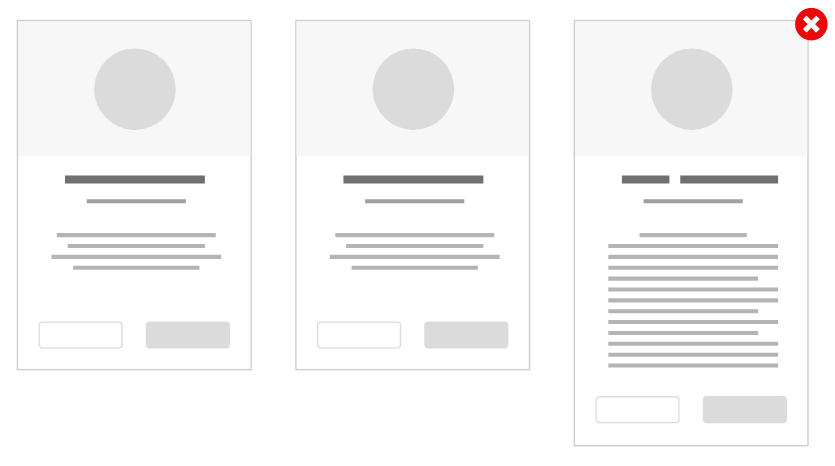
One exception to this rule of alignment can be applied when you are trying to indicate an increase in value from one card to the other like in pricing tables.
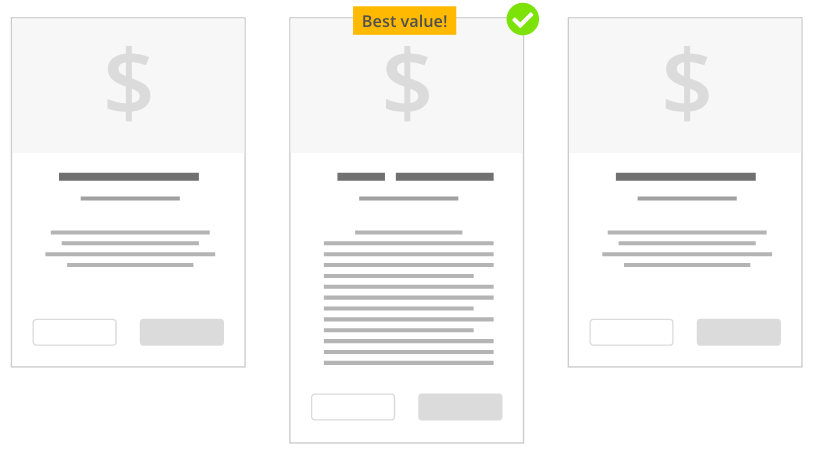
Link cards in which the click target of the card is the whole container can negatively affect a screen reader experience. Please consider this alternative to building an accessible solution to this challenge.
Always implement the proper states for link cards. Hover, focus, and active.
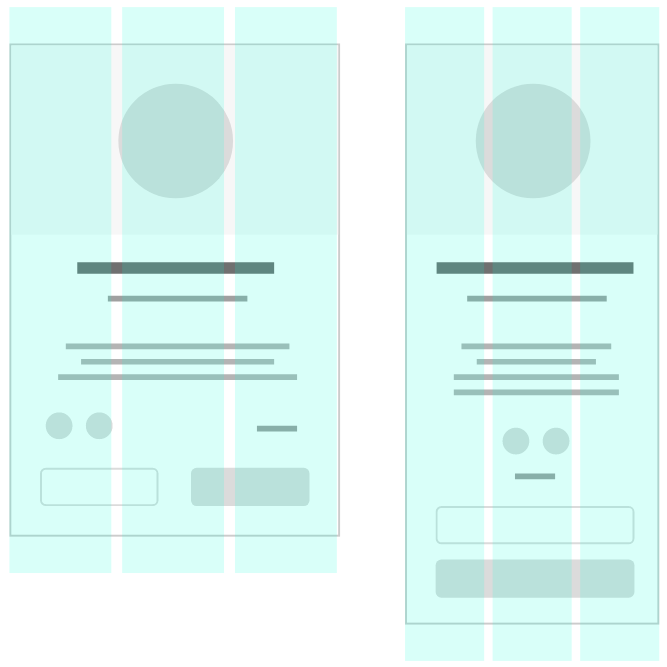
Cards are a powerful tool for building responsive layouts, and planning their content well is crucial to achieving that goal. Use a grid layout within your card content to ensure components like buttons wrap correctly when the width of the card is reduced before getting to the next breakpoint.
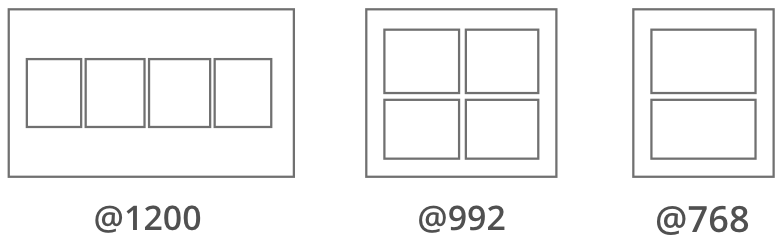
Independent of the content, we recommend aligning a maximum of 4 cards in a row and a minimum of 2.
We would like to get your feedback. Tell us how you use this component in your projects and how we can improve it.